

See auxi in action
your workflows and save you time!
We’re back again with more PPT hacks to make your workdays a lot easier (and your manager a lot happier :) !!
What shall we start with?
The Golden Rule of course! You can access the smart bar using CTRL + Space.
And today, we’re adding one more thing to the Golden Rule. The auxi Keyboard Shortcuts!
Start reading to know all about it!
1. Swap Shapes and Text.
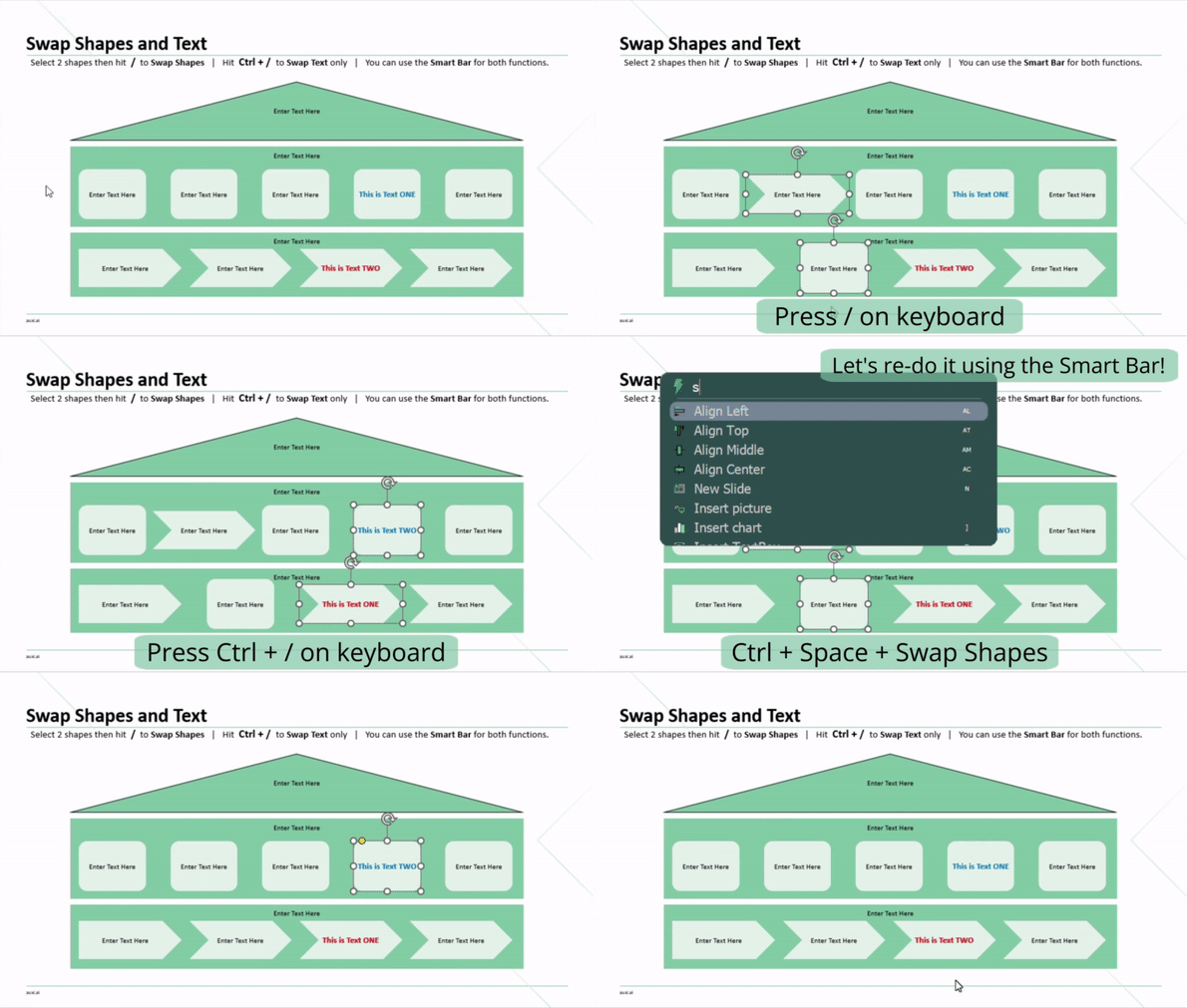
- Select 2 shapes you would like to swap, then hit / on your keyboard.
- If you want to only swap the text content inside the shapes or textboxes, then hit Ctrl + / to swap texts.
- You can also use the Smart Bar for both functions by typing in ‘Swap Shapes’ and ‘Swap Text’.
⤷ Everyone’s settled in their right place now. Good for them.
2. Copy Shape Type.
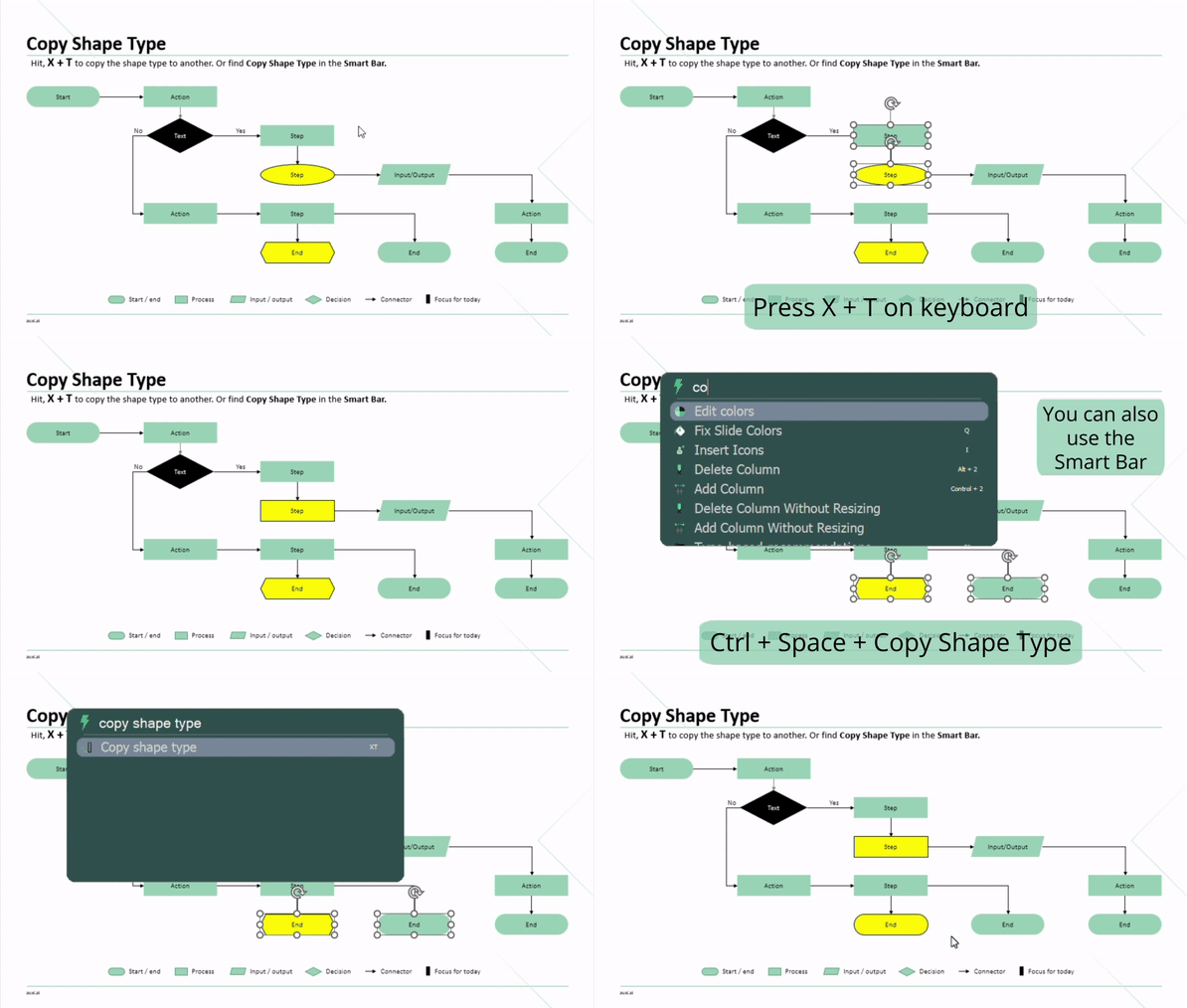
- Select your items then hit X + T to copy the shape type of one item to one or several others. The first shape you choose is the anchor – meaning that the remaining selected shapes will follow the first shape selected.
- You can also select your shapes then open auxi’s smart bar and type in ‘Copy Shape Type’.
⤷ Finally! That oval in your slide can fulfill its lifetime goal by becoming a rectangle. You wish you could swap your shape type with the Rock. We know... not gonna happen.
3. Fix Slide Colors.
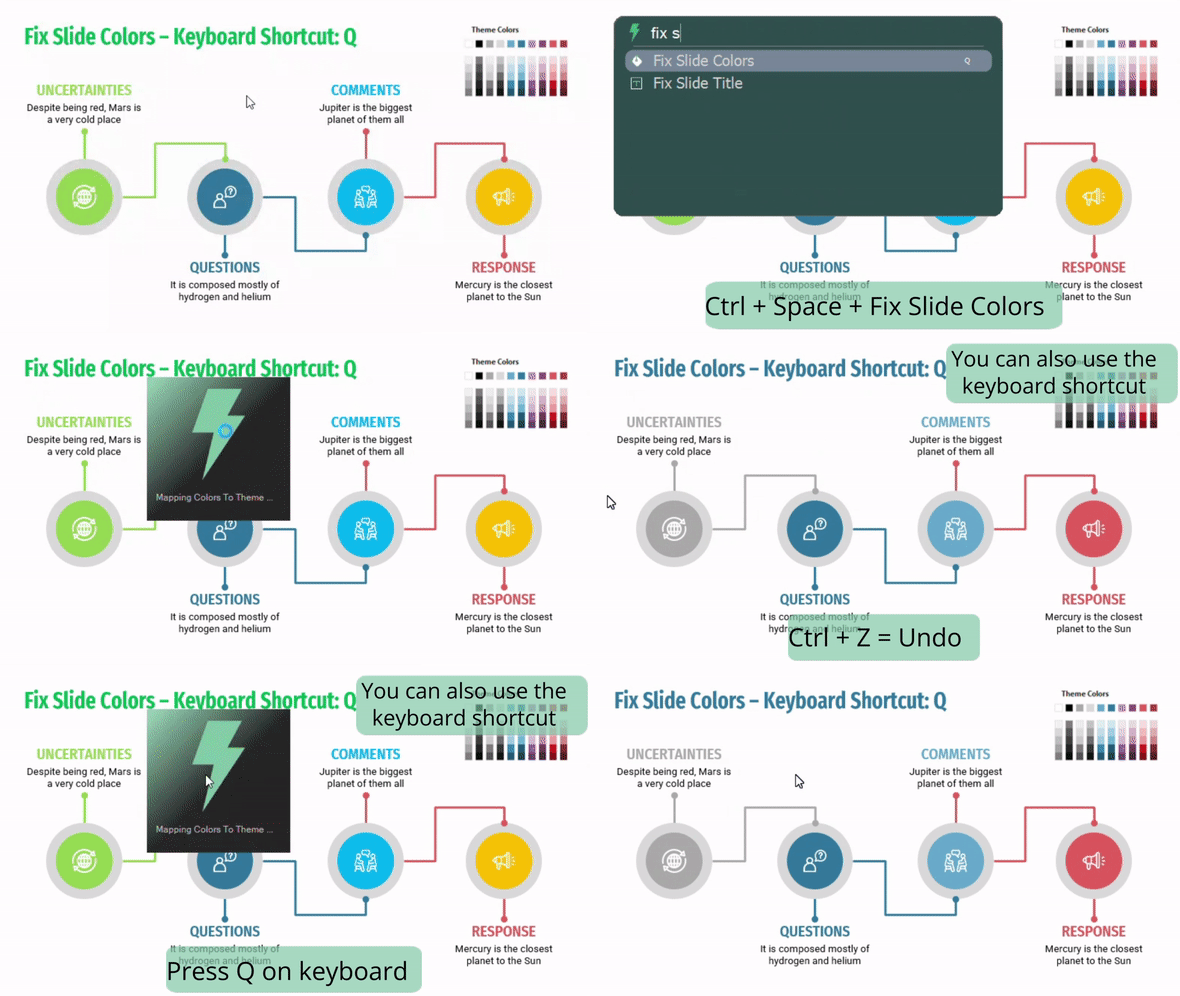
- Hit Q on your keyboard. The auxi add-in will automatically change all your slide colors into theme colors.
- You can also use the Smart Bar to find ‘Fix Slide Colors’.
⤷ Now you’re sure that your slide colors follow the theme without having to check by yourself.
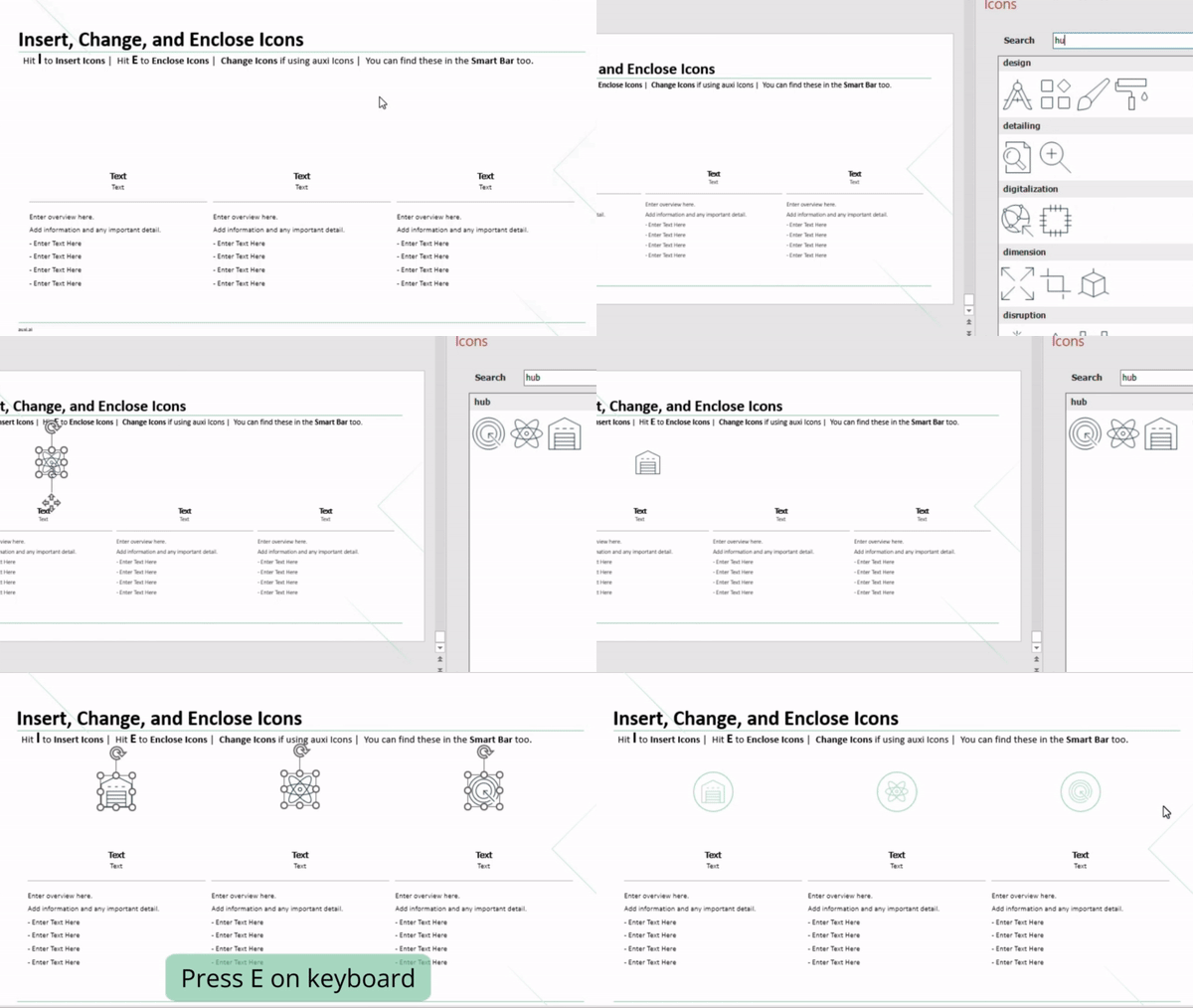
4. Insert, Change, and Enclose Icons.
- auxi offers you more than 4 million icons to choose from! Yep, you read that right :)
- Hit I to insert icons and E to enclose them in circles for better design. You can press E several times to loop through options.
- If you’re using auxi icons, you can change them using the ‘Change Icons’ command in the Smart Bar. It doesn’t replace it with a random icon, but with one that’s related to the same topic!
⤷ Now your slide has a lively touch and a catchy design!
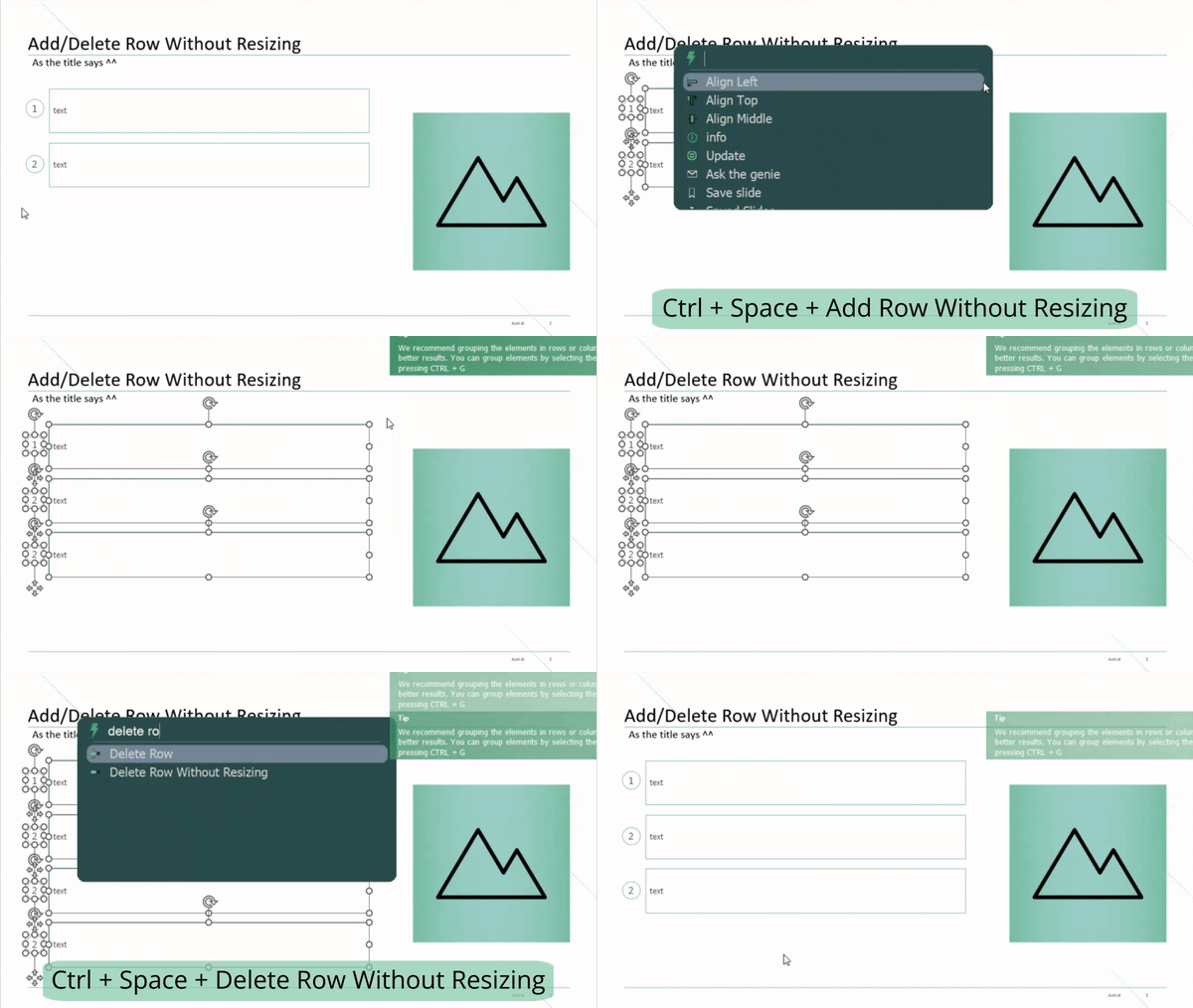
5. Add/Delete Row Without Resizing.
- Remember our magical Add/Delete row feature? This is similar but when you have enough space to add a row without the need to resize everything.
- Select your rows then open auxi’s smart bar using Ctrl + Space. Type in the command you want: Add/Delete Row Without Resizing.
⤷ Voila! You have a new cohesive row that is automatically well behaved.
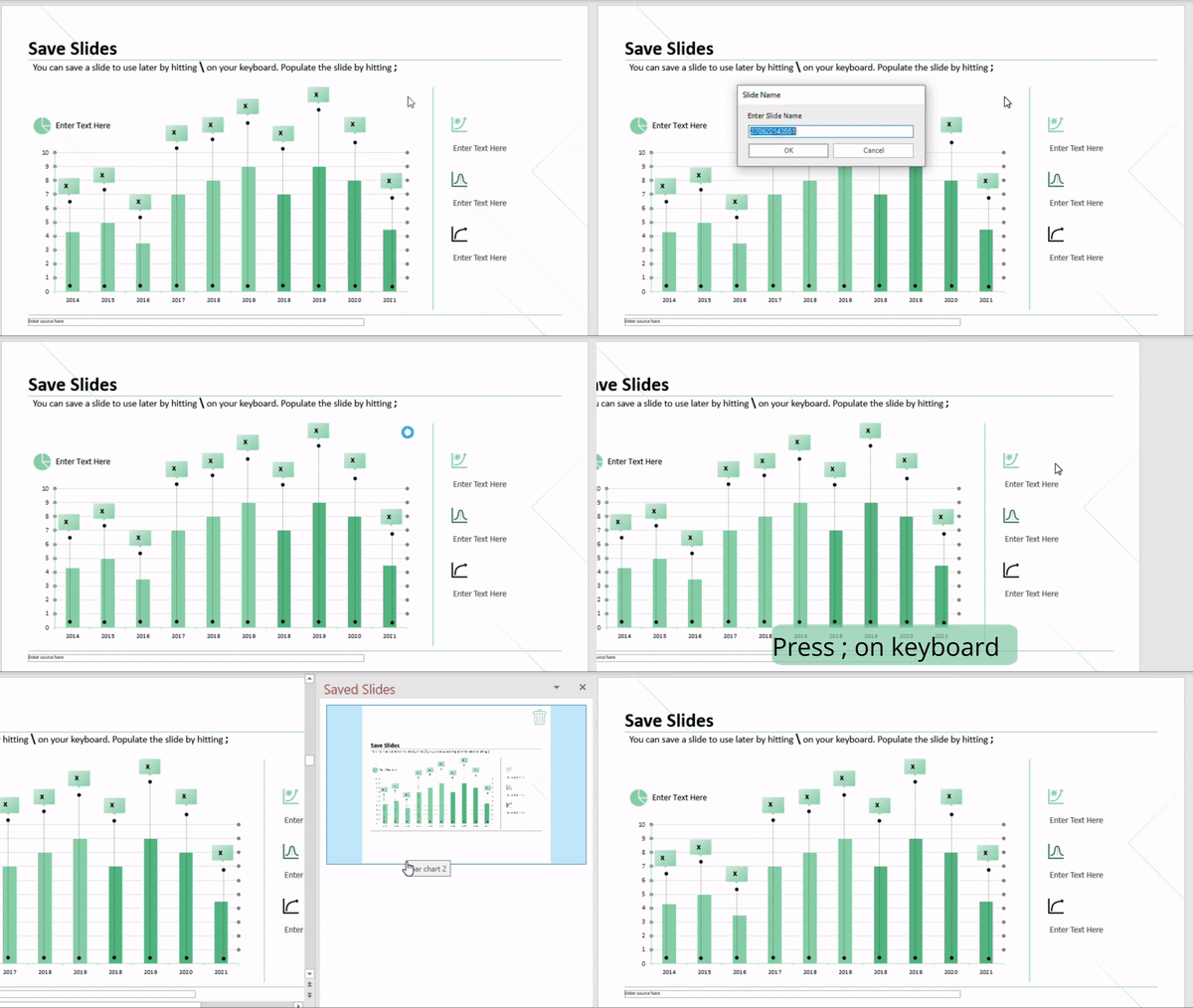
6. Save Slides.
- You can save a slide to use later by hitting \ on your keyboard.
- To populate the slide, hit ;
⤷ Now you can recycle your slides just as you like!
7. Split and Merge Textboxes.
- Select all the textboxes you need, starting with the one you want on top, then ‘Merge Textboxes’ through the Smart Bar, or just hit . + T on your keyboard.
- You can also split textboxes by placing the cursor where you want them to part ways, then type ‘Split Textbox’ in the Smart Bar.
⤷ Join your textboxes together like a matchmaker, or let your new textboxes enjoy the single life.