
Gen AI - Translate
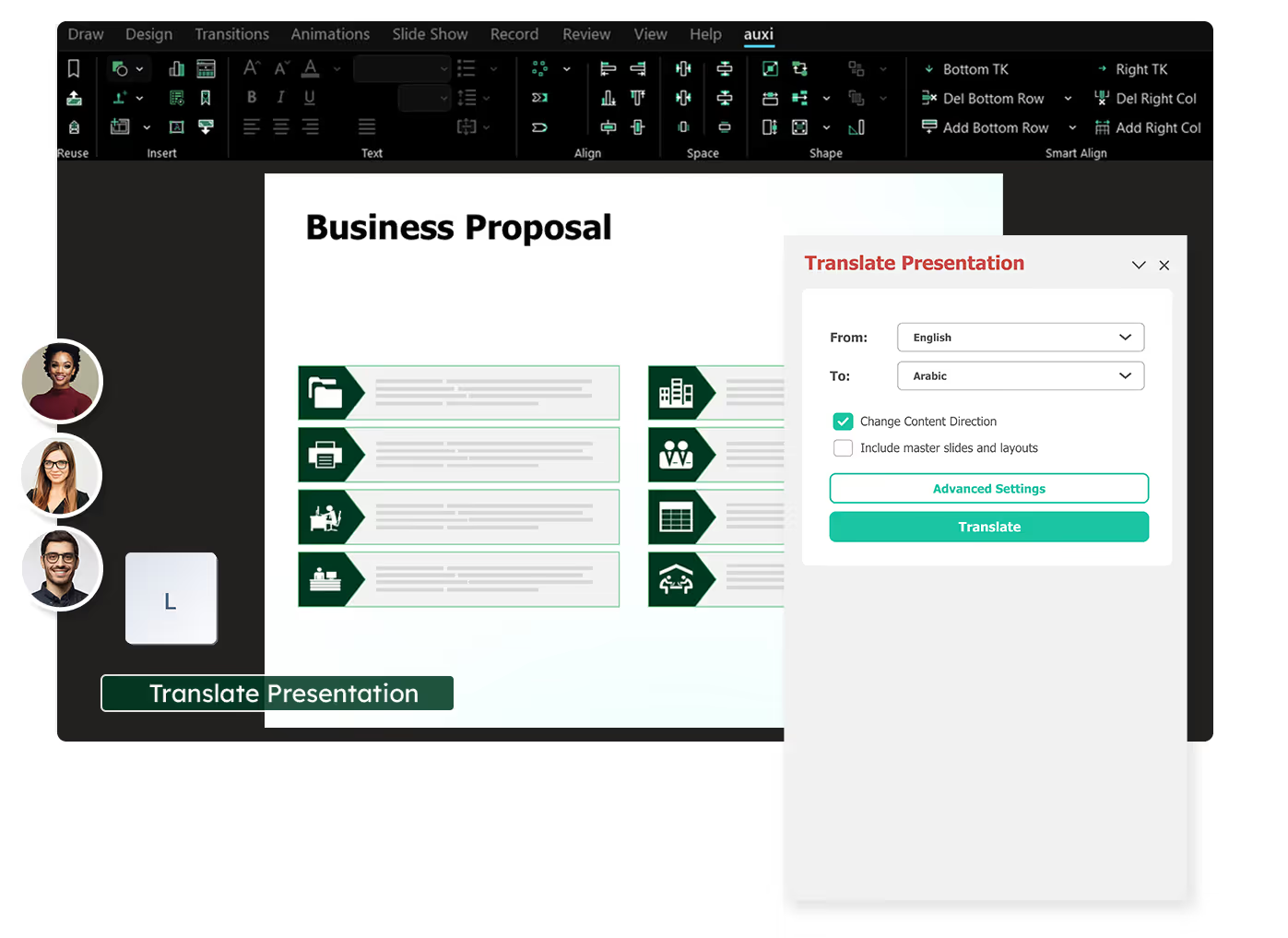














auxi supports all the major languages written, read and spoken worldwide. Whether you are translating your decks from English to Arabic or Japanese, you a click away.

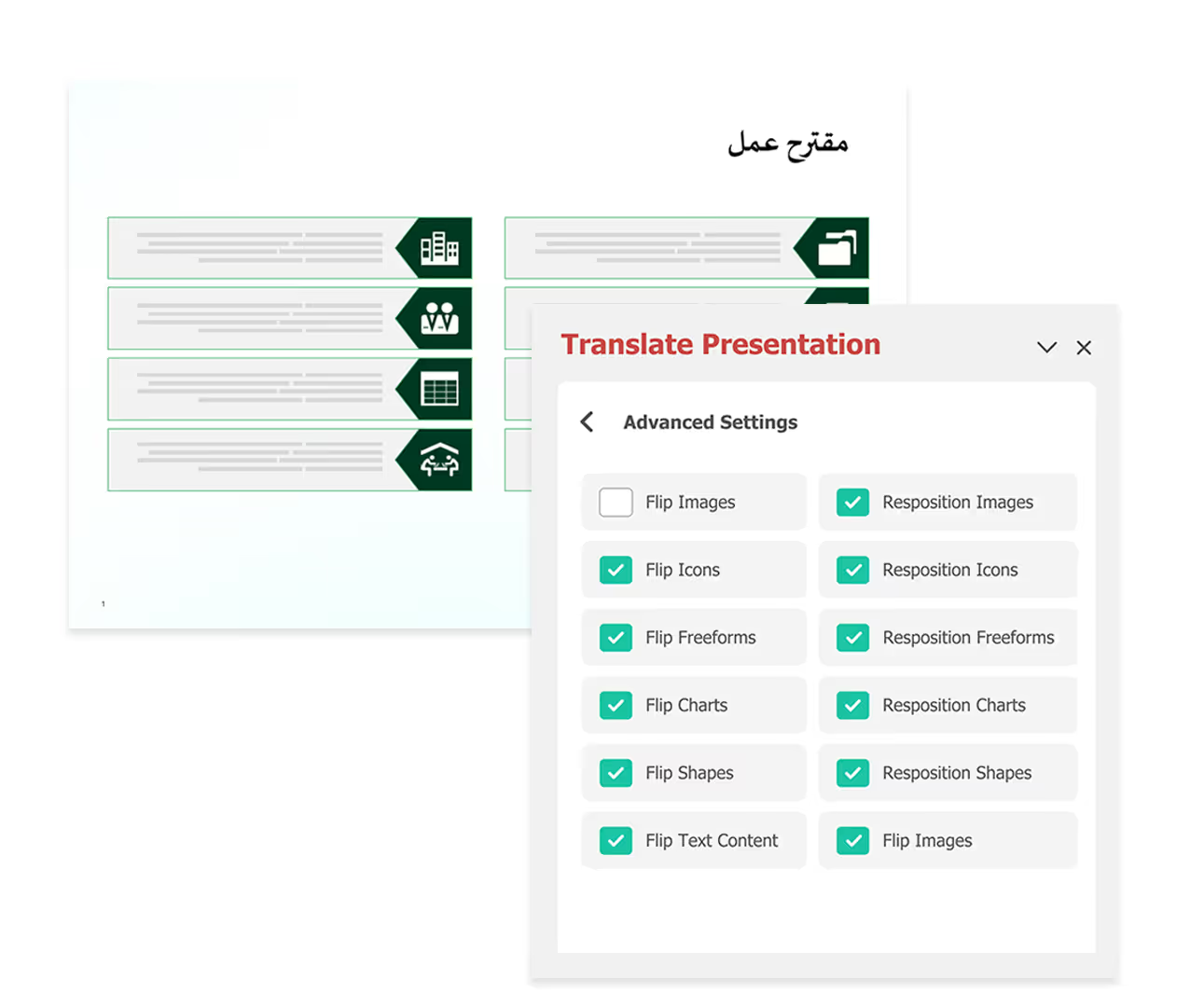
You don't only get to translate basic text, but you can also translate charts, framework, tables and even third-party add-in charts.
slides built on
auxi each month
top consulting
firms use auxi
enterprise companies
building slides with auxi
How do I translate a slide or deck in auxi?

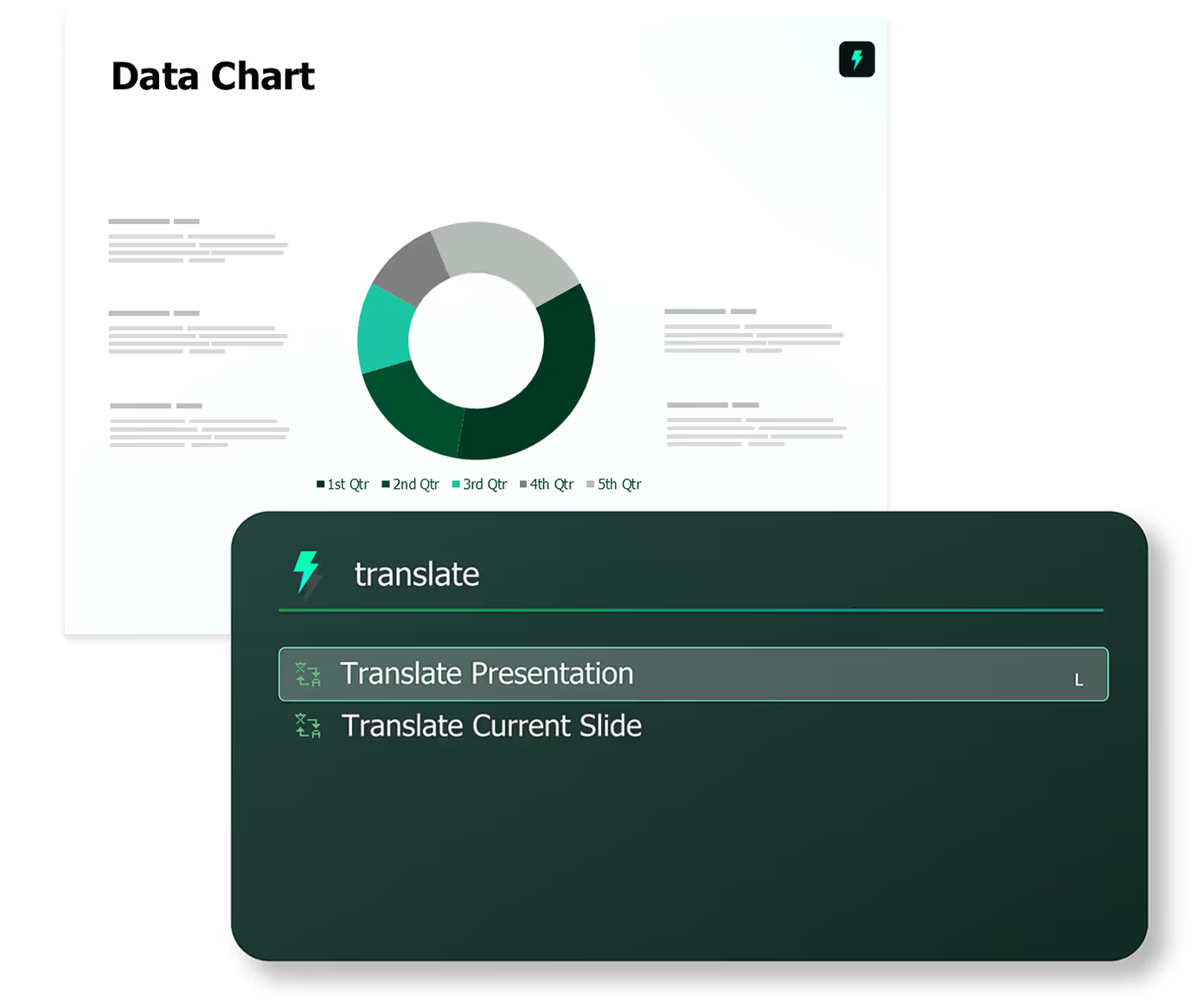
You can translate your slide or entire deck by accessing the auxi SmartBar and searching for translate. You will get two options:
1. Translate Presentation
2. Translate Current Slide
Alternatively, you can use the shortcut "L" to begin translating.
Is auxi Translate available on all plans?
Yes, whether you are on the Pro Plan or Enterprise, you are able to use the translate function.
Do I need to realign my content after flipping?
Not at all. auxi carries your alignment from your previously selected language to the newly translated slide. For example, if your original content is in English and is left aligned after translating and flipping, your content will automatically align.
Does auxi create a new translated slide?
Yes, when you hit translate, auxi will create a new slide file or duplicate the entire deck in a new file.