
See auxi in action
Explore auxi and see how it can elevante
your workflows and save you time!
Schedule a Demoyour workflows and save you time!
Yooo! It is Tuesday Tips Time.
Time to hit you with the best PPT hacks and some auxi stacks.
As always - the Golden Rule: Hit CTRL + SPACE to open up the smart bar.
Let's get started.
1. Connections.
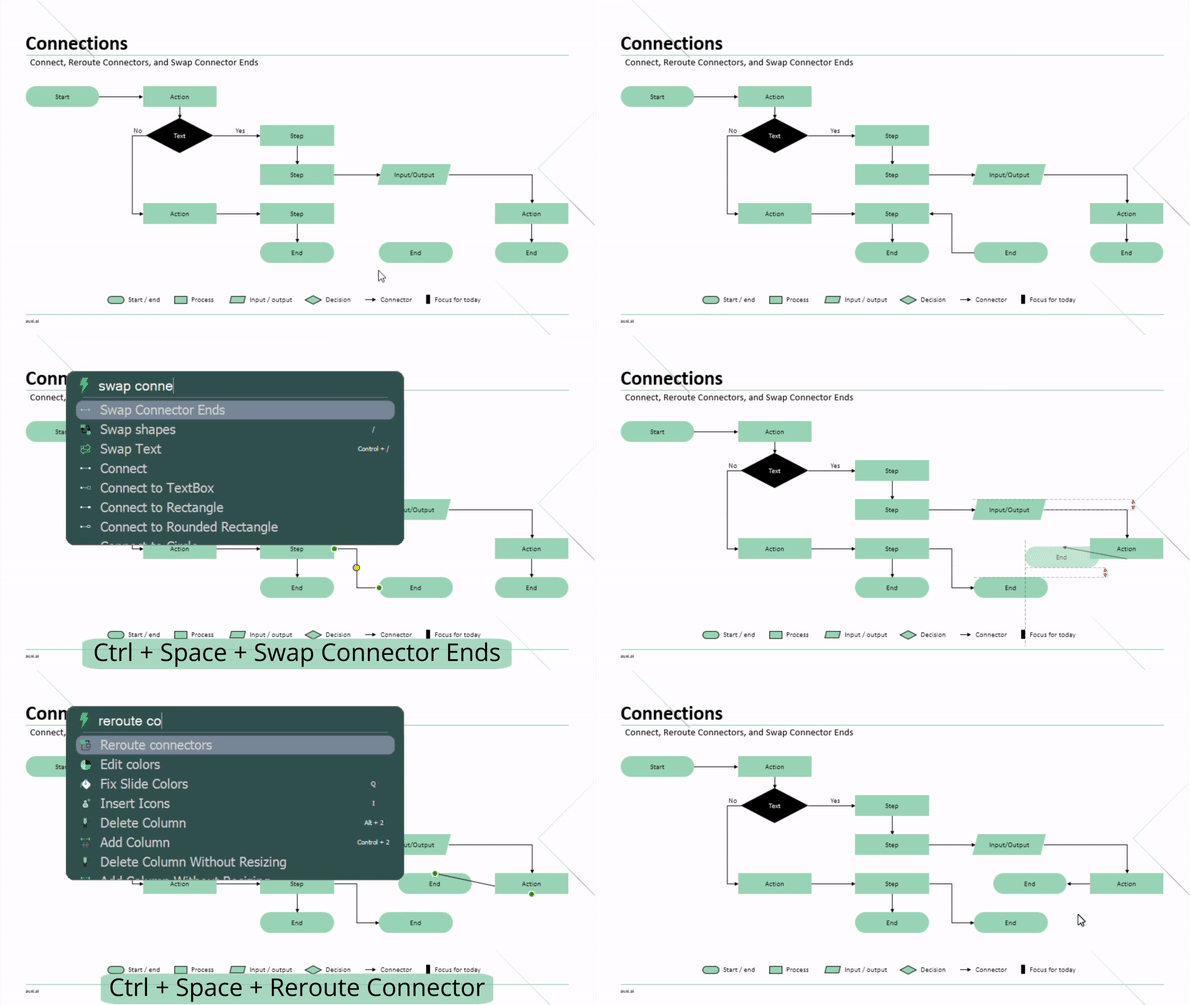
- Select any 2 shapes, open the Smart Bar and find Connect to connect both items with the best connector and points for the job.
- If you want to swap the direction of the connector, you can also select the connected shapes, and find Swap Ends on the Smart Bar.
- If you want to change the route of the connector, open the Smart Bar again, and use Reroute Connectors.
⤷ Finally. It is now easy to connect shapes on PowerPoint.
2. Edit Colors.
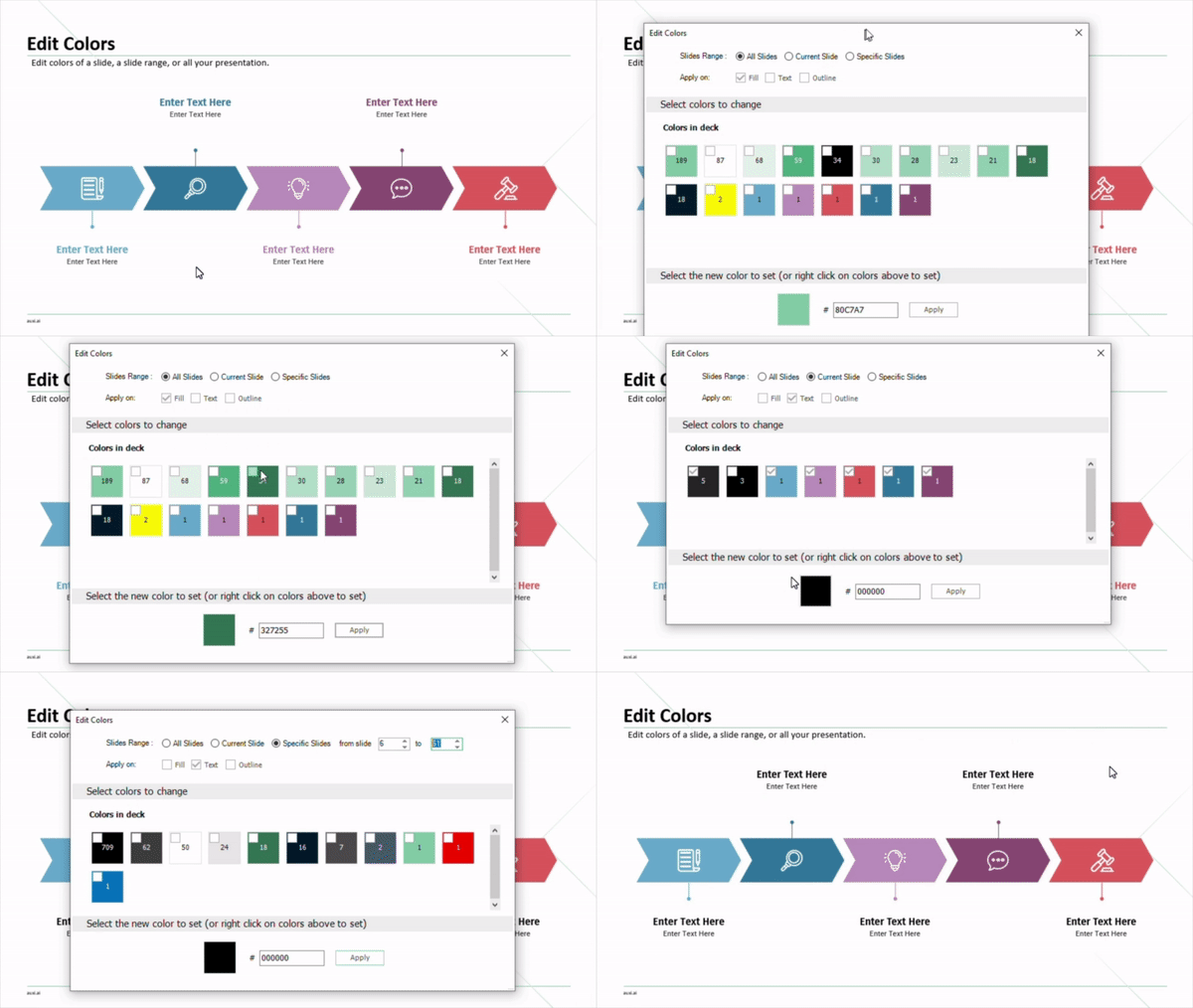
- Look for Edit Colors in the Smart Bar to change colors of a slide, slide range, or all your presentation.
⤷ Now you can edit your deck’s colors in bulk!
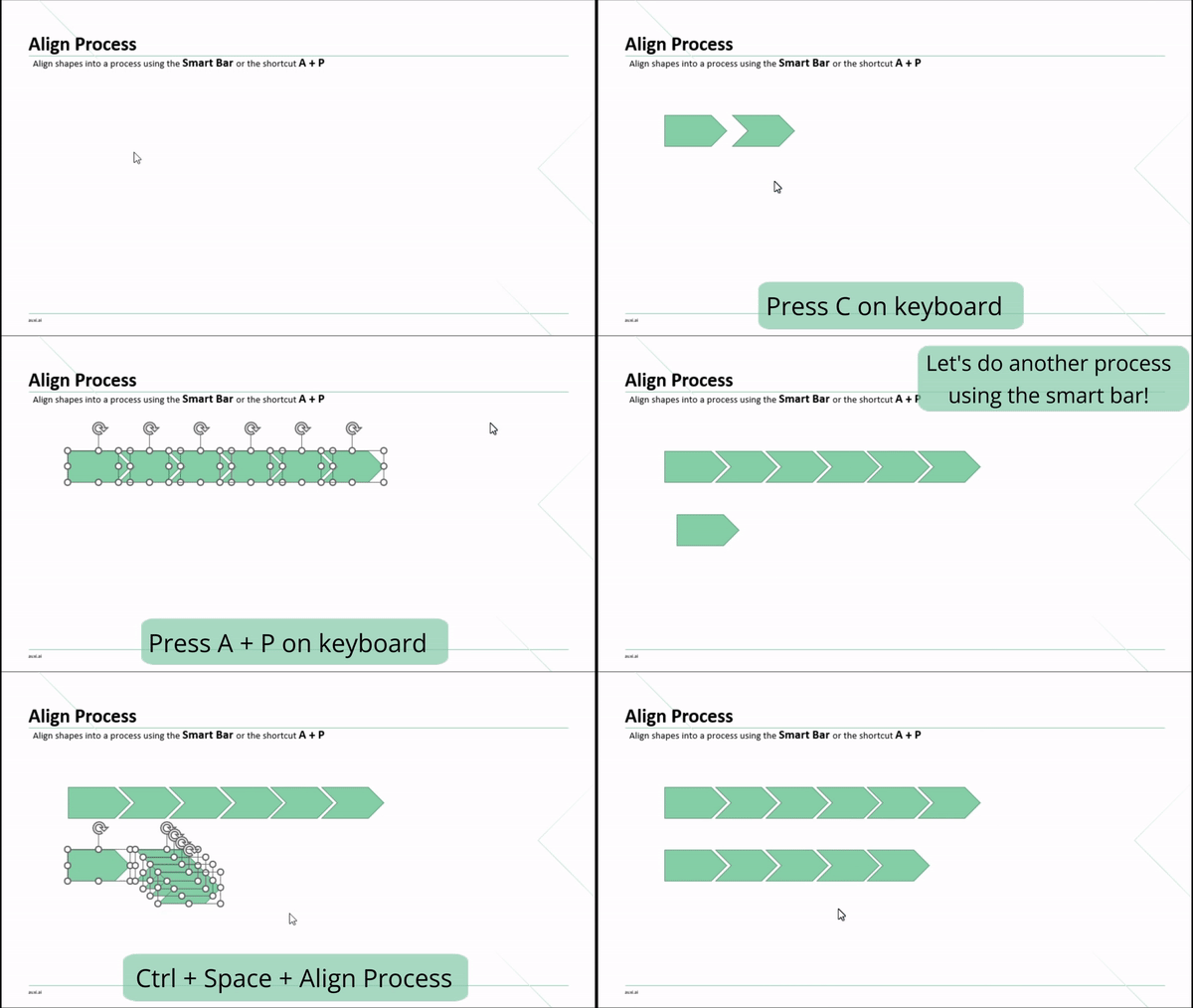
3. Align Process.
- Hit P on your keyboard to add a pentagon, then C to add a couple chevrons. Then, select all your items and hit A + P to Align Process.
- You can also use the Smart Bar to find Align Process.
⤷ Now you can fulfill your musical hobby by playing auxi shortcuts like a musical instrument!
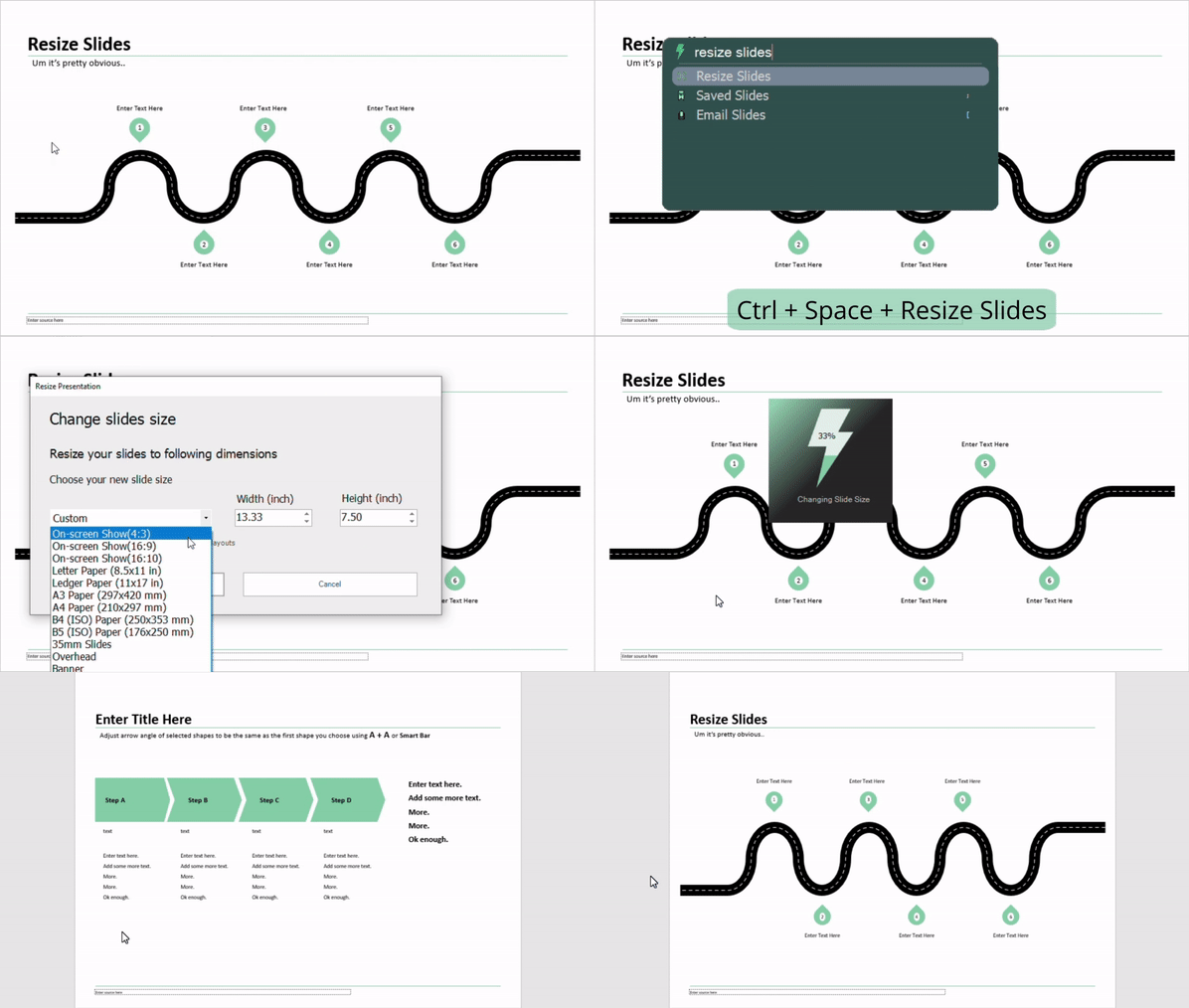
4. Resize Slides.
- Look for Resize Slides in the Smart Bar, then choose the new slide size you want, and press apply.
⤷ Now your slides finally have the fit size they’ve always wanted!
5. Make Same Size, Width, and Height.
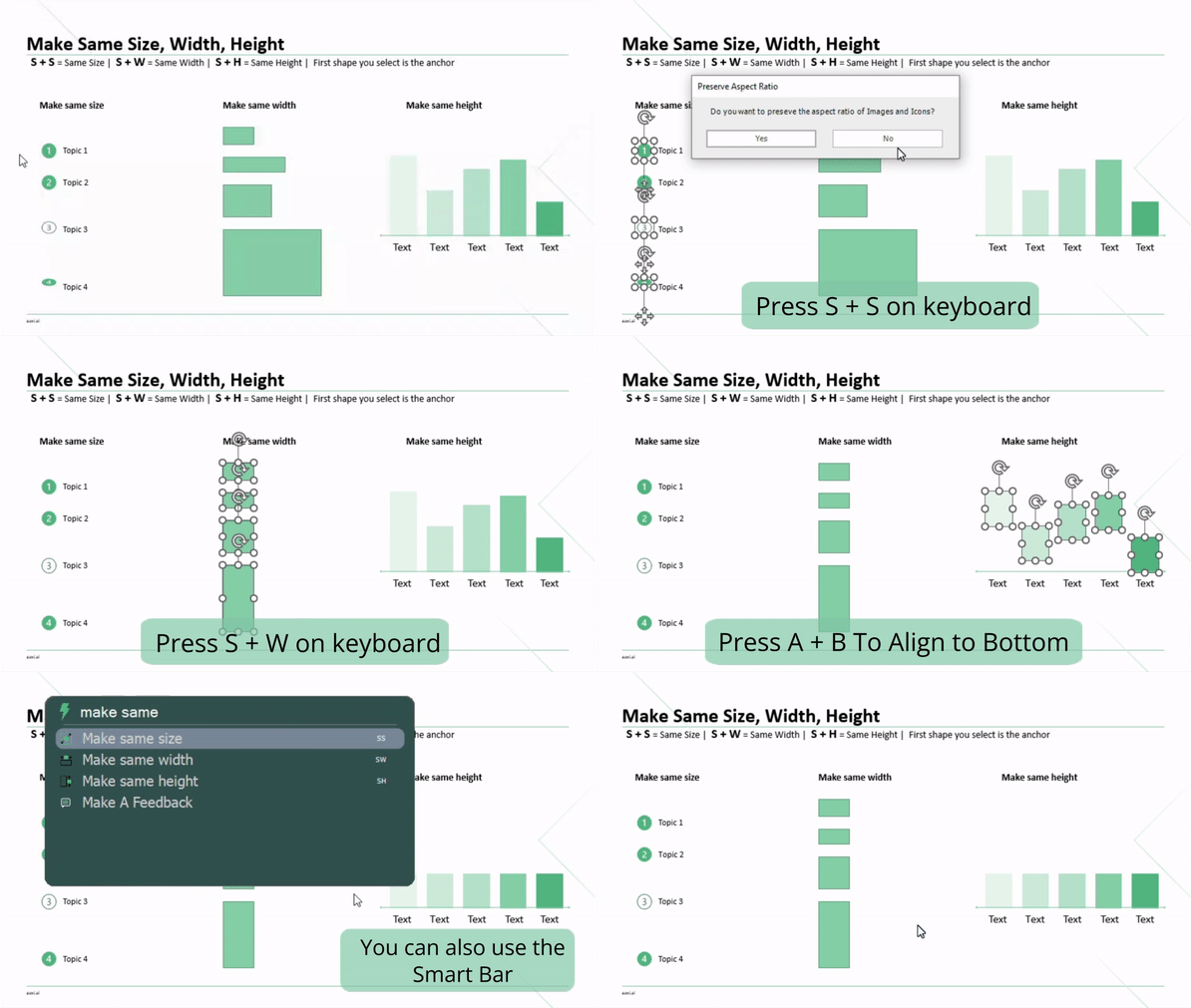
- Resize items to have the same height, width, or both.
- S + S for Make Same Size
- S + H for Make Same Height
- S + W for Make Same Width
- You can use the Smart Bar to find the above commands as well.
- The anchor shape concept applies here - select first the shape that has the size you like, then select the remaining ones to follow.
⤷ Voila! All shapes will be resized to the anchor’s width and/or height.