
See auxi in action
Explore auxi and see how it can elevante
your workflows and save you time!
Schedule a Demoyour workflows and save you time!
This should reduce your work a quarter and make your workday shorter!
Shall I repeat the Golden Rule? You can open the Smart Bar by hitting CTRL + SPACE?
Ok ok, let’s get started!
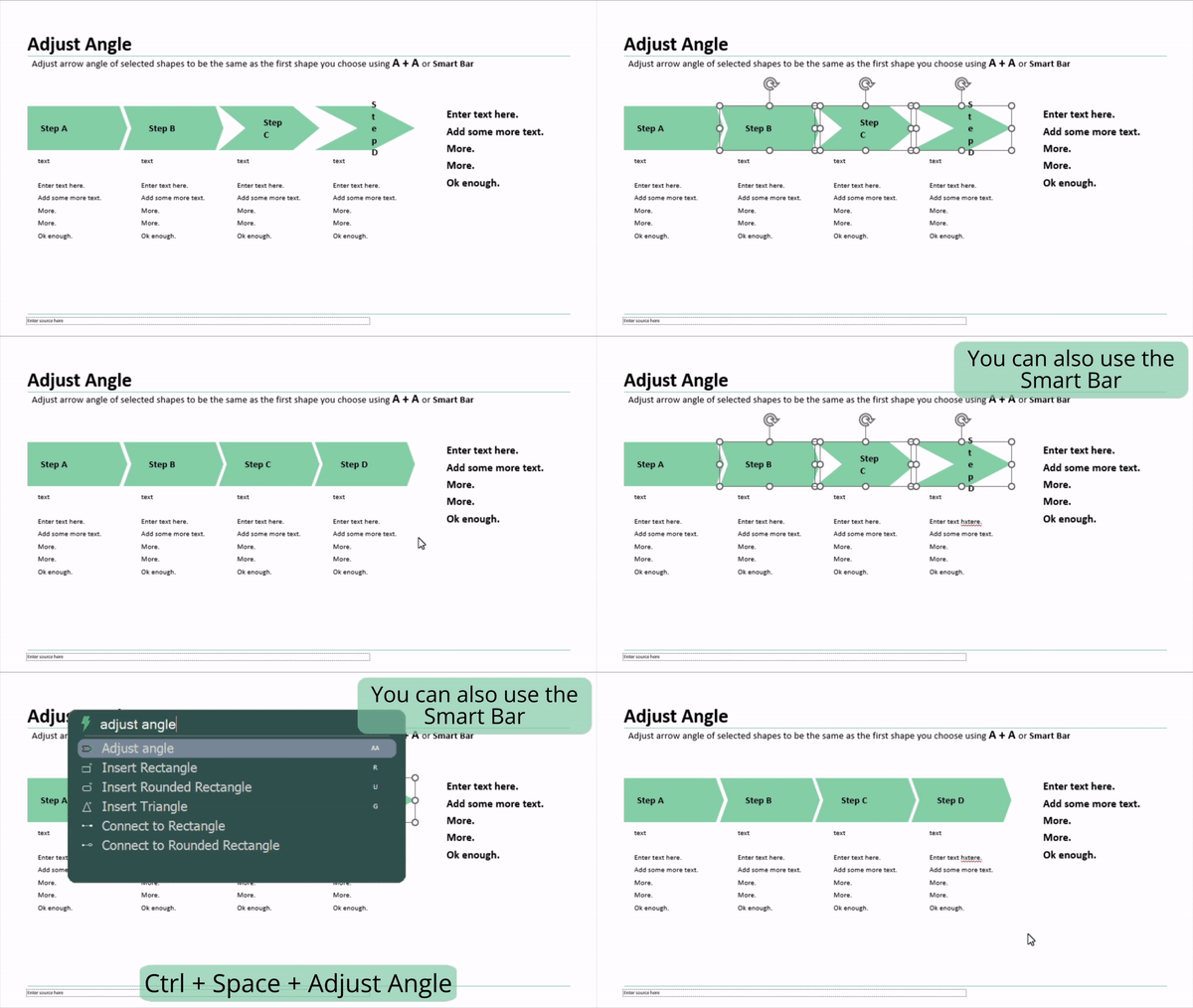
1. Adjust Angle.
- Select the anchor shape first, the shape that has the right angle, then all the other ones that should follow it, then hit A + A to Adjust Angles.
- You can use the Smart Bar to find it as well.
⤷ Now you can easily adjust shapes' angles. You don’t have to spend long fixing each angle anymore!
2. Align Central.
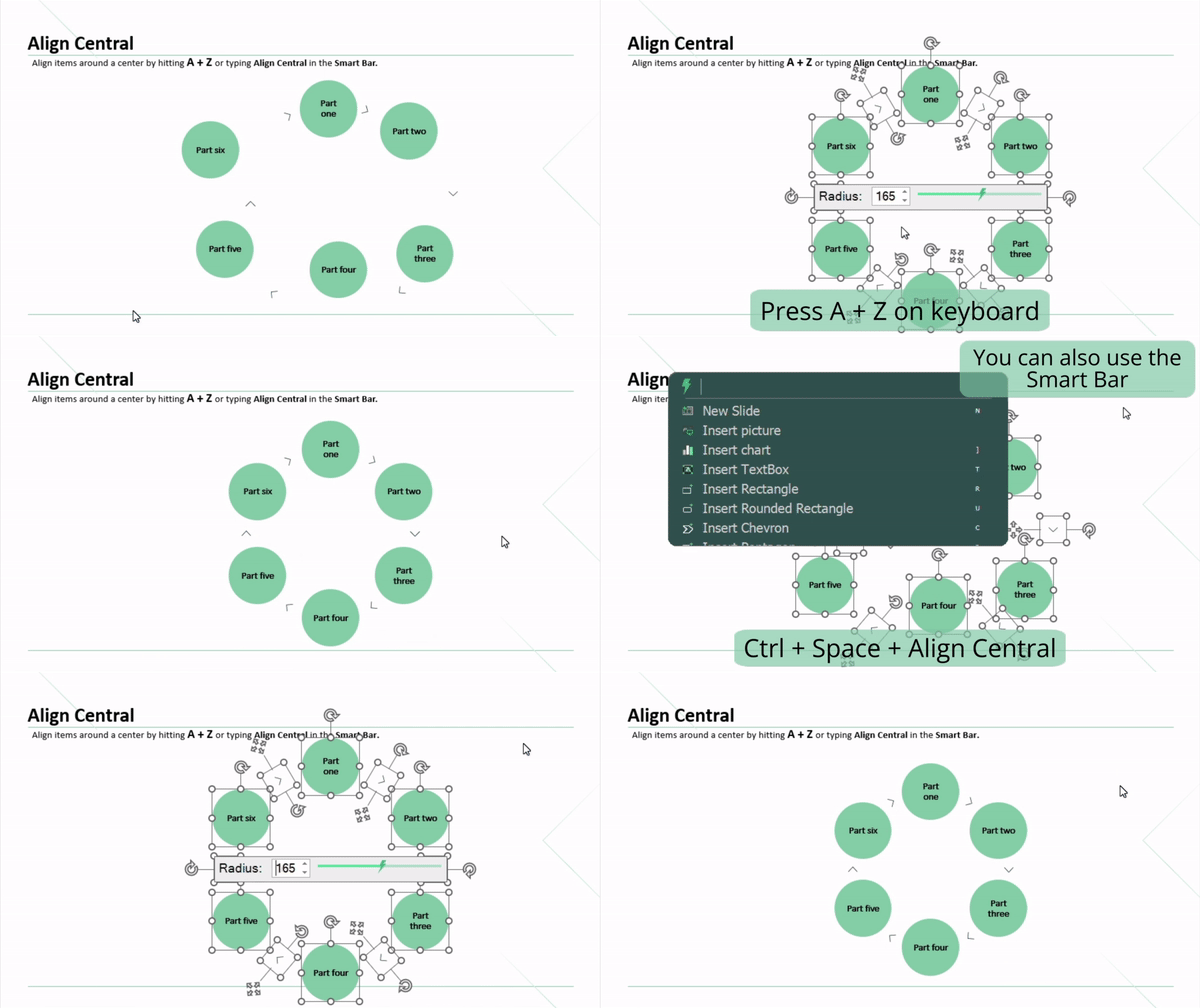
- This feature has saved me so much time and will save yours too. Here’s how:
- Select your shapes.
- Hit A + Z to Align Central.
- You can also find Align Central in the Smart Bar.
- Decrease or increase the radius as you wish.
⤷ Aligning in a central form has never been easier!
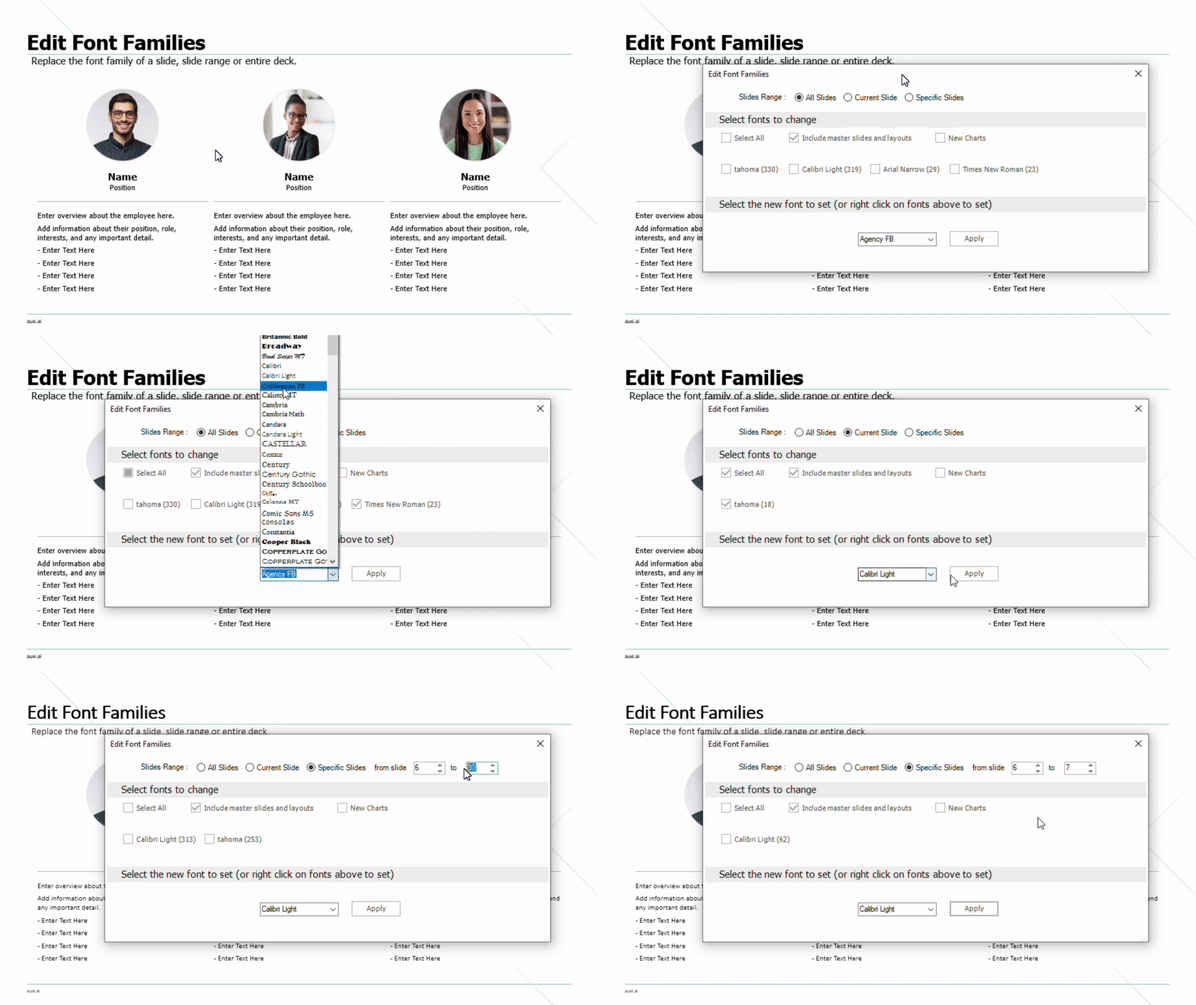
3. Edit Font Families.
- Search for Edit Font Families in the Smart Bar.
- Select the fonts you would like to change, then choose the new font family that will be replacing them. Easy.
⤷ You don’t have to miss family time anymore; you can edit your deck’s font types in bulk!
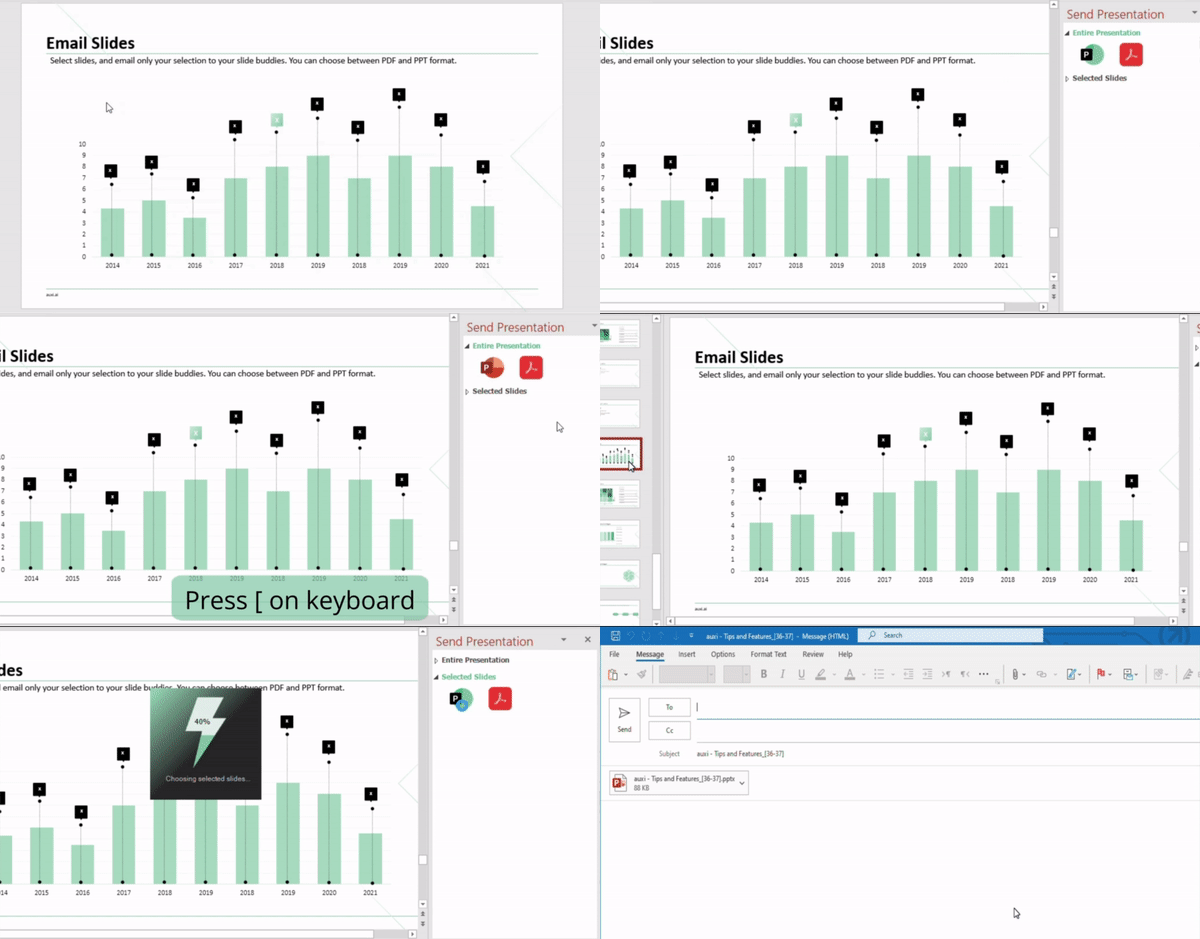
4. Email Slides.
- Select the slides you are interested in, then search for Email Slides in the Smart Bar or the auxi ribbon.
- You can also start this command by hitting [ on your keyboard.
- After that, choose between PDF and PPT format to get your slides ready to send.
⤷ This will be extremely helpful when you want to share specific slides only from your presentation.
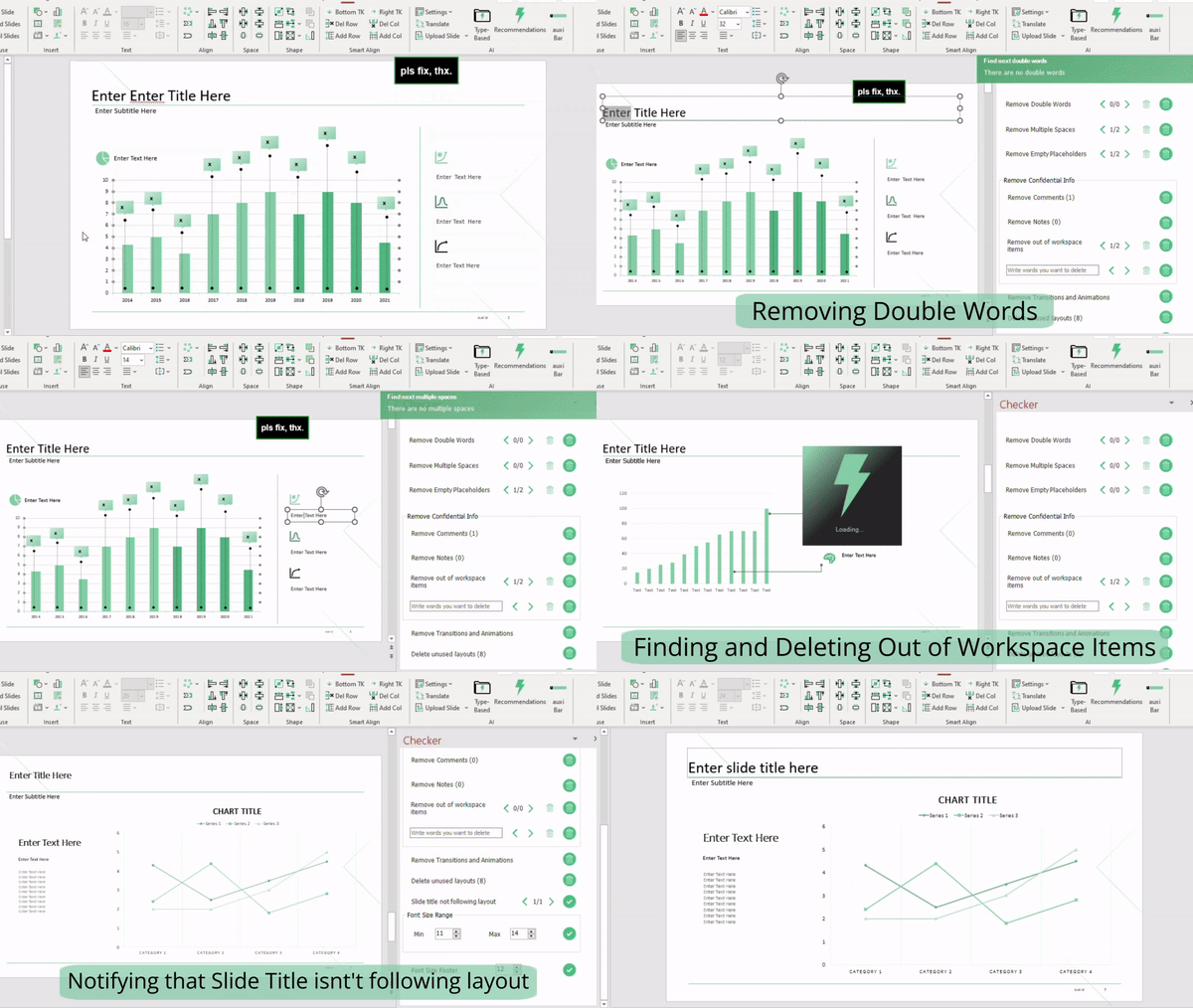
5. The Checker.
- Find the Checker using the Smart Bar.
- It checks for double words, multiple spaces, comments, out of scope elements etc., then allows you to delete them all in one go or one by one if you prefer.
⤷ Voila! Your deck’s now ready to be sent to someone important, auxi’s add-in checked it for you with some simple clicks!