
See auxi in action
Explore auxi and see how it can elevante
your workflows and save you time!
Schedule a Demoyour workflows and save you time!
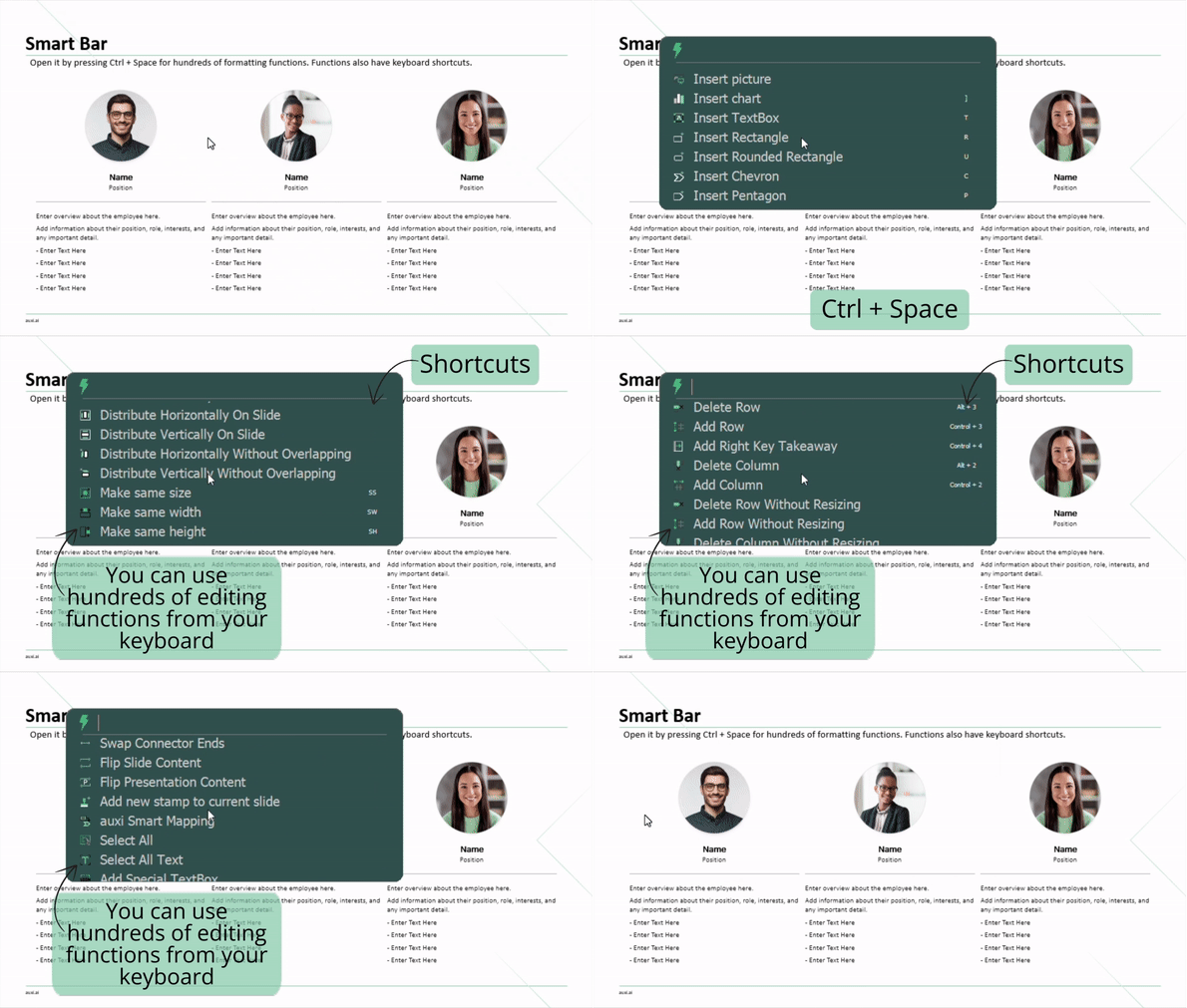
1. Smart Bar.
- You can open up the Smart Bar by pressing on CTRL + SPACE.
- Search for hundreds of formatting functions.
- On the right side of each function you can notice little characters. These are the keyboard shortcuts for each of these functions.
⤷ We love using our keyboard and thought you would too! Give it a look!
2. Alignments.
- Use these shortcuts to run these commands faster:
- A + L for Align Left
- A + T for Align Top
- A + B for Align Bottom
- A + R for Align Right
- You can use the Smart Bar to do these as well so you can use the follow-up functions after each.
- The anchor shape concept here applies. Select the shape you want the rest to follow first.
⤷ Now you can run these commands like playing the piano!

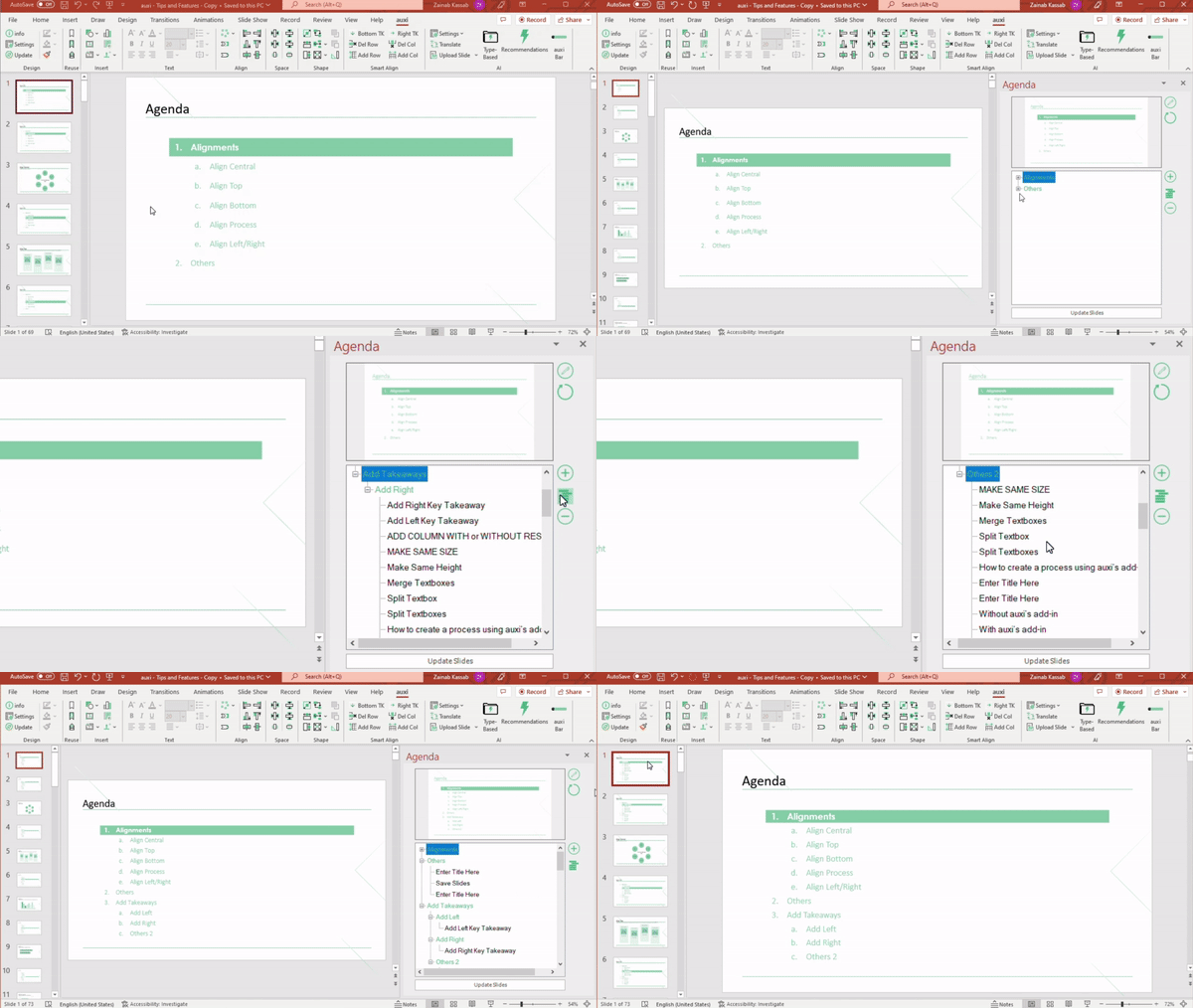
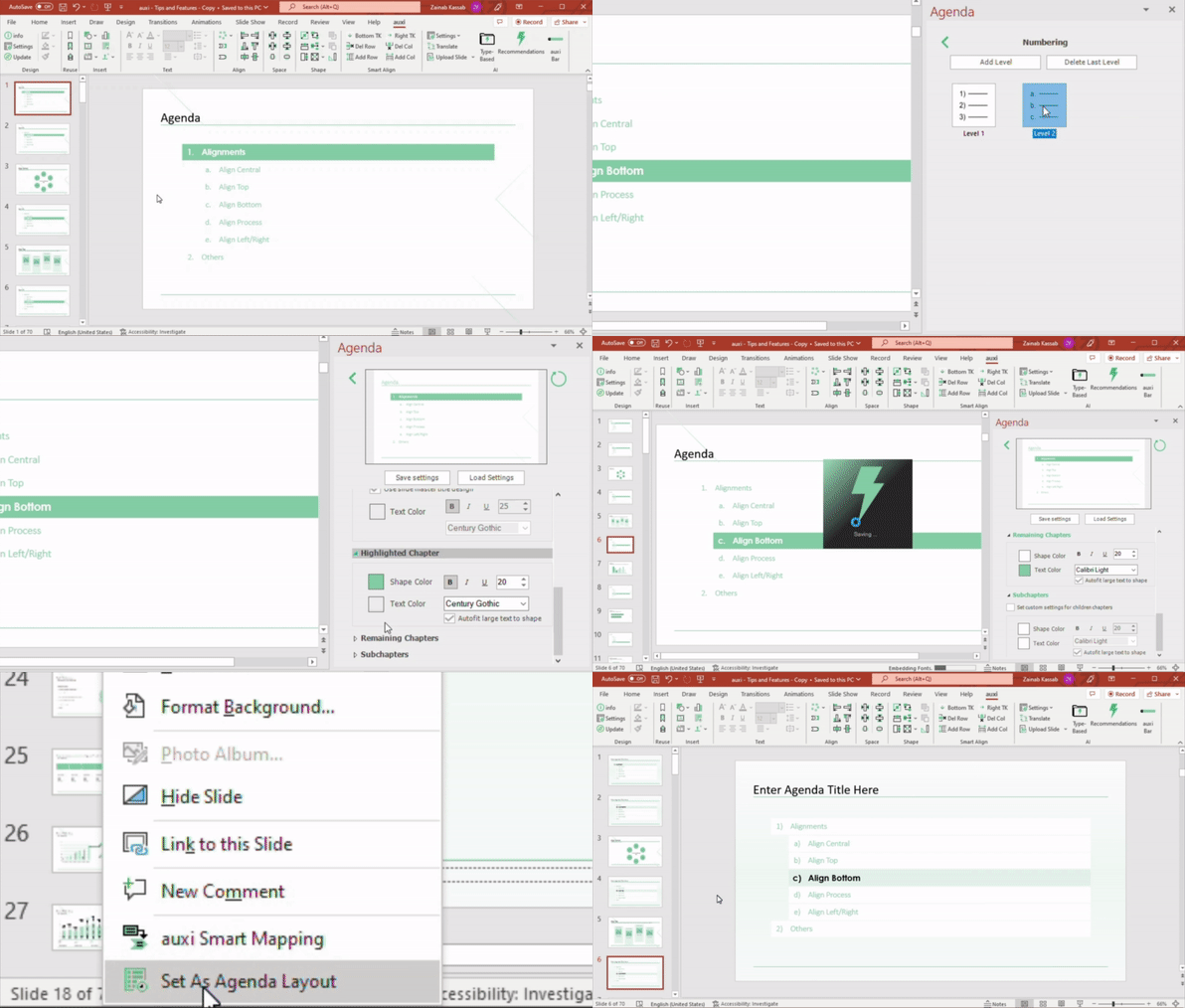
3. Agenda.
- Look up Agenda through the Smart Bar.
- You can add chapters and subchapters.
- You can also drag and drop slides, a selection of slides or chapters and their children all together.
⤷ You can use the agenda feature to edit your deck’s agenda slides in one place. Press update slides, et voila!
4. Agenda Settings.
- Look up Agenda Settings in the Smart Bar.
- You can change all colors, fonts, sizes, positions and other characteristics in one place.
- Now if you like these settings so much that you want to save them and use them in the future, you can literally do that!
- Press on the refresh button for a preview of how your new agenda slide will look like and press on update slides if ready to apply the changes.
- Also, if you want your agenda settings to follow the layout of another slide in your presentation, you can right click on any slide and press on Set As Agenda Layout.
⤷ Any change you make in the settings will be applied to all agenda slides when you click on Update!
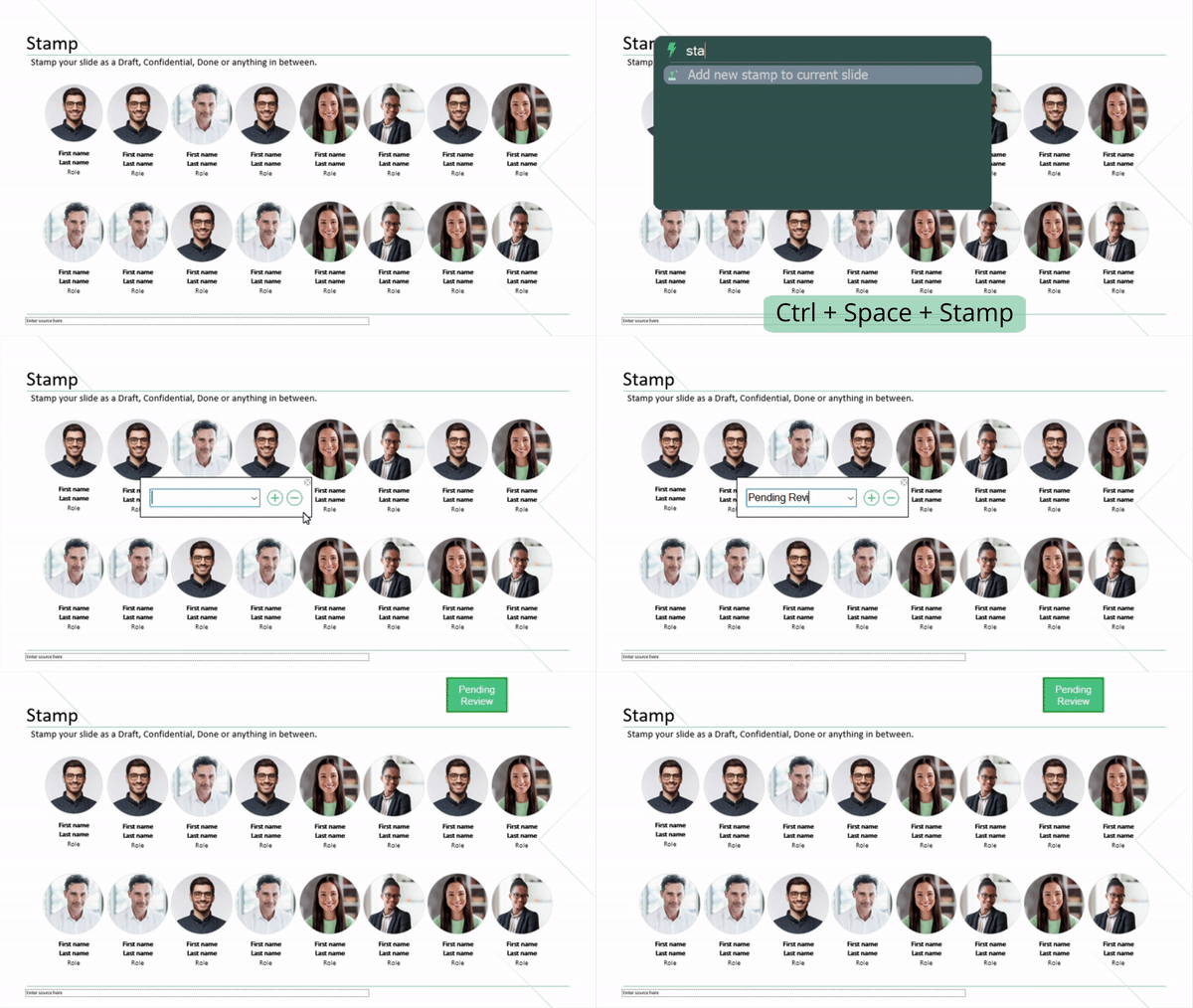
5. Stamp.
- You can find the Stamp through the Smart Bar or using the auxi Ribbon.
- It allows you to choose default stamps or just type in your own.
⤷ Now you can help your colleagues easily understand what type of slide they’re looking at!