

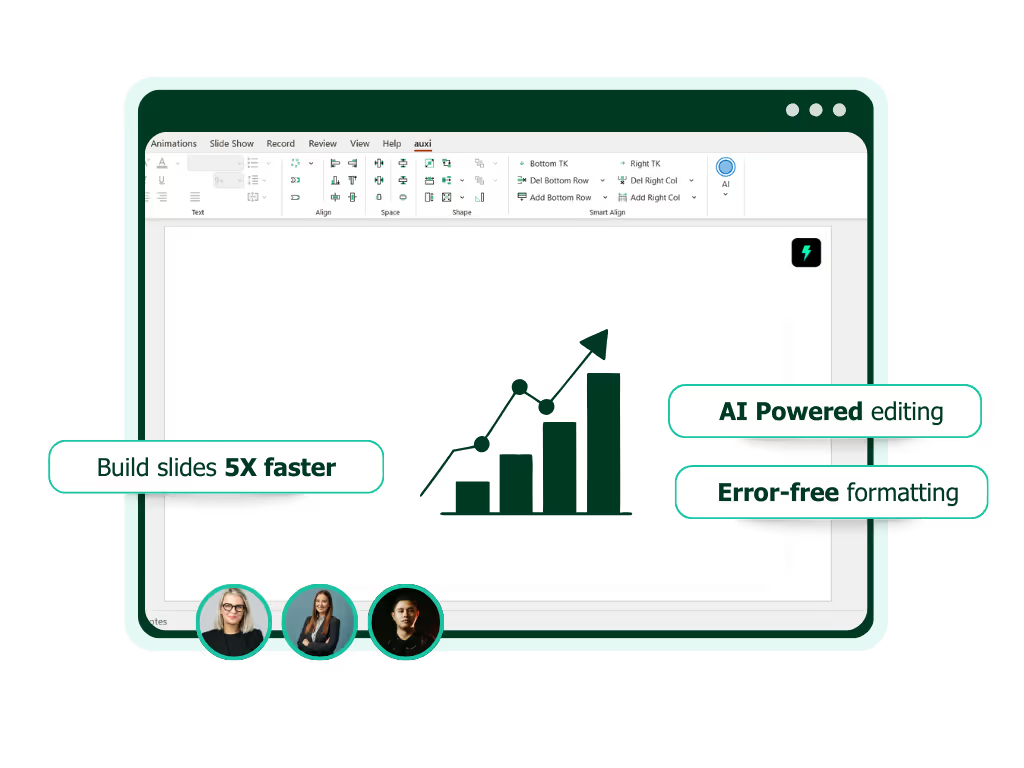
See auxi in action
your workflows and save you time!
PowerPoint shortcuts are not new.
Any PowerPoint poweruser in consulting, investment banking or corporate strategy knows their way around PowerPoint shortcuts, in most cases by muscle memory. This comes from spending 100s of hours building decks and formatting slides.
Align left, duplicate, group objects, etc. These are all useful PPT shortcuts, but they can be limited. But the real bottleneck in slide production is not remembering short cut keys, mainly because PowerPoint was never designed for the way professionals today actually build decks.
Let's be real, native PowerPoint experience is slow - from managing open presentations to even moving between panes (like Thumbnail, Notes or Comments). Recognizing this, auxi built a solution around these pain points making it faster to build decks.
auxi extends PowerPoint with a layer of intelligence and automation that simply does not exist natively. Its PowerPoint shortcuts are not just faster ways to click buttons. They encode consulting-grade slide logic directly into keyboard commands. The result is a step-change in productivity, especially for teams that live in slides.
Here are 20 auxi-only PowerPoint shortcuts you can use. In each section we explain what the shortcut does, and how it fundamentally improves efficiency compared to standard PowerPoint shortcut keys.
auxi shortcuts provide a more direct alternative to navigating the legacy PowerPoint ribbon and traditional shortcuts.
1. Smart Bar: (CTRL + SPACE) or (CTRL + K)
What it does: Think of the auxi SmartBar as the command center. This is where you find 250+ AI capabilities to choose from. On each slide you access the SmartBar it also recommends the most suitable next action. You can execute auxi functions without navigating menus and ribbons.
Why do you need it?
The auxi SmartBar replaces cognitive overhead. Instead of remembering where features live, the SmartBar finds you exactly what you need (or simply type). Whether you're aligning elements, updating fonts and colors, instead of memorizing dozens of PowerPoint shortcuts, it's all in one place.
2. Insert Default Textbox: (D + T)
What it does: When you have your slide open, hit D + T and auxi will insert a preformatted default textbox that follows your brand guidelines and spacing rules.
Why it makes everything more efficient
Native PowerPoint text boxes and body text placeholders are inconsistent by default. This auxi shortcut eliminates formatting drift and helps with manual formatting, deleting text, and removing characters manually. Every textbox starts compliant, which reduces cleanup work at the end of a deck and ensures visual consistency across slides and contributors.
3. Insert Rectangle: (R)
What it does: Insert a rectangle using default brand guidelines by simply hitting the R key.
Why it makes everything more efficient
Instead of drawing shapes and manually fixing borders, fills, and sizing, this PowerPoint shortcut guarantees consistency. Over a full deck, this saves minutes per slide and eliminates visual noise that undermines credibility.
4. Insert Rounded Rectangle: (U)
What it does: Creates a rounded rectangle aligned to your shape system with rounded edges.
Why it makes everything more efficient
Rounded rectangles are commonly used for callouts, labels, and containers. auxi ensures the radius and proportions are consistent, something PowerPoint users often adjust manually and inconsistently.
5. Insert Chevron: (C)
What it does: Inserts a chevron shape optimized for process flows, each time you hit the key C, you get a Chevron to build a seamless process visual.
Why it makes everything more efficient
Process diagrams are ubiquitous in consulting decks. This PowerPoint shortcut in auxi removes the friction of building flows shape by shape, ensuring alignment and spacing are correct from the start.
6. Insert Icon: (I)
What it does: When you use auxi as your PowerPoint add-in, you get access to a variety of assets. Hitting the key (I), opens the icon library that hosts > 1 million icons.
Why it makes everything more efficient
Icons often break consistency across slides. auxi standardizes sizing and placement, eliminating the need for manual resizing and alignment. This ensures that all icons adhere to predefined dimensions and positioning rules, maintaining uniformity throughout the presentation. By automating these adjustments, auxi reduces the risk of visual inconsistencies that can distract viewers and compromise the professionalism of the deck.
7. Insert New Slide: (N)
What it does: One keyboard key, (N) in this case creates a new slide.
Why it makes everything more efficient
Instead of starting from a blank canvas, this auxi PowerPoint shortcut creates a slide that already respects margins, placeholders, and layout rules. It accelerates slide creation and reduces rework. auxi also ensures the correct layout applied, and helps format slides for consistency.
8. Merge Textboxes: (+ T) or (. T)
What it does: Merges multiple textboxes into one while preserving content order.
Why it makes everything more efficient
In PowerPoint, merging text often involves copy-paste gymnastics (c paste, copied object, object selected). auxi turns this into a single keystroke, which is invaluable when cleaning up legacy slides or combining inputs from multiple authors.
9. Swap Shapes: (J)
What it does: Swaps the position of two shapes.
Why it makes everything more efficient
Reordering visual elements is common during iteration. This shortcut avoids dragging, aligning, and nudging, allowing you to restructure slides instantly without breaking alignment.
10. Swap Text: (CTRL + /)
What it does: Swaps text content between two textboxes.
Why it makes everything more efficient
This is especially useful when testing alternative headlines or reordering arguments. It encourages faster iteration without layout disruption. auxi streamlines copying, pasting, and swapping text, compared to native c paste and object selected workflows.
11. Add Right Column: (CTRL + 2)
What it does: Adds a new column to a table or layout structure.
Why it makes everything more efficient
PowerPoint tables are notoriously fragile. auxi treats columns as structural elements, allowing you to expand layouts without rebuilding them.
12. Add Bottom Row: (CTRL + 3)
What it does: Adds a row to the bottom of a table or grid.
Why it makes everything more efficient
This shortcut maintains consistent spacing and alignment automatically. It removes the risk of distorted tables that often occur with manual adjustments.
13. Add Key Takeaway: (CTRL + 4)
What it does: Inserts a formatted key takeaway section.
Why it makes everything more efficient
Consulting slides live or die by their takeaways. This shortcut standardizes how insights are presented, making decks easier to read and faster to build.
14. Make Same Width: (S + W)
What it does: Resizes selected objects to the same width.
Why it makes everything more efficient
Manual resizing is imprecise and slow. In native PowerPoint, you must select multiple objects or a selected object and use send object forward/backward or send object commands to arrange them. auxi enforces pixel-perfect consistency instantly and improves on object management.
15. Make Same Height: (S + H)
What it does: Resizes selected objects to the same height.
Why it makes everything more efficient
Consistent heights are critical for professional layouts. auxi removes guesswork and manual corrections.
16. Make Same Size: (S + S)
What it does: Matches both width and height across selected objects.
Why it makes everything more efficient
This is particularly useful for icon grids, comparison tables, and dashboards where visual balance matters.
17. Distribute Vertically: (D + V)
What it does: Evenly distributes selected objects vertically.
Why it makes everything more efficient
Unlike native PowerPoint shortcuts, auxi respects layout logic and spacing rules, producing cleaner results with fewer adjustments.
18. Distribute Horizontally: (D + H)
What it does: Evenly distributes objects horizontally.
Why it makes everything more efficient
This shortcut ensures consistent spacing across complex layouts, especially when working with multiple shapes or columns.
19. Increase Font Size: (CTRL + ])
What it does: Increases font size in controlled increments.
Why it makes everything more efficient
auxi avoids arbitrary font scaling. Text remains readable and consistent across slides, reducing visual clutter.
20. AI Recommendations: (A + I)
What it does: Triggers auxi’s AI-powered slide recommendations.
Why it makes everything more efficient
This shortcut goes beyond formatting. It helps improve structure, layout, and clarity, effectively acting as a second set of eyes on your slide.
The Bigger Picture: PowerPoint Shortcuts in auxi That Encode Expertise
auxi PowerPoint shortcuts aren't incremental improvements. They represent a different philosophy. Instead of optimizing PowerPoint as a drawing tool, auxi treats it as a thinking tool.
If you build slides daily, the compounding effect is substantial. You're spending less time formatting, deleting text and shift elements around - and more time refining strategy and insights. Within a few weeks, PowerPoint shortcuts in auxi fundamentally change the way you build decks.
auxi shortcuts also enhance productivity as you move away from the PowerPoint nitty gritty like copying elements, making rounded edges or even translating slide decks.
PowerPoint will always be the canvas. auxi turns it into a professional-grade instrument. And for quick reference, all of auxi’s best shortcuts can be summarized in a cheat sheet, so your team always has the most efficient workflow at their fingertips.
Why These Shortcuts Matter
Mastering these PowerPoint shortcuts allows you to spend less time on manual formatting and more time concentrating on insights and storytelling. auxi’s approach ensures that even the most complex tables can be created, formatted, and edited quickly and accurately—entirely from the keyboard. Whether you’re modifying font size, aligning text, or reorganizing data, these shortcuts are indispensable for anyone looking to work more efficiently in PowerPoint.
By incorporating these shortcuts into your routine, you’ll achieve a higher level of productivity and consistency in your presentations—another way auxi transforms PowerPoint into a powerful productivity tool for professionals.
auxi - PowerPoint Add-in
auxi is a PowerPoint productivity tool that is built for consultants and investment bankers. With 250+ AI powered function, auxi works within your PowerPoint environment and enables you to generate slides 10X faster. Features like translation, proposal generator or branding automation, all help PPT powerusers build better.