
See auxi in action
your workflows and save you time!
AAAAND we’re back with 7 more PPT hacks to make your workdays more enjoyable!!
As usual, here's our Golden Rule: You can access the smart bar using CTRL + Space. You can also find some of the features in the auxi tab on the PowerPoint banner if you prefer the mouse.
Now let’s get started!
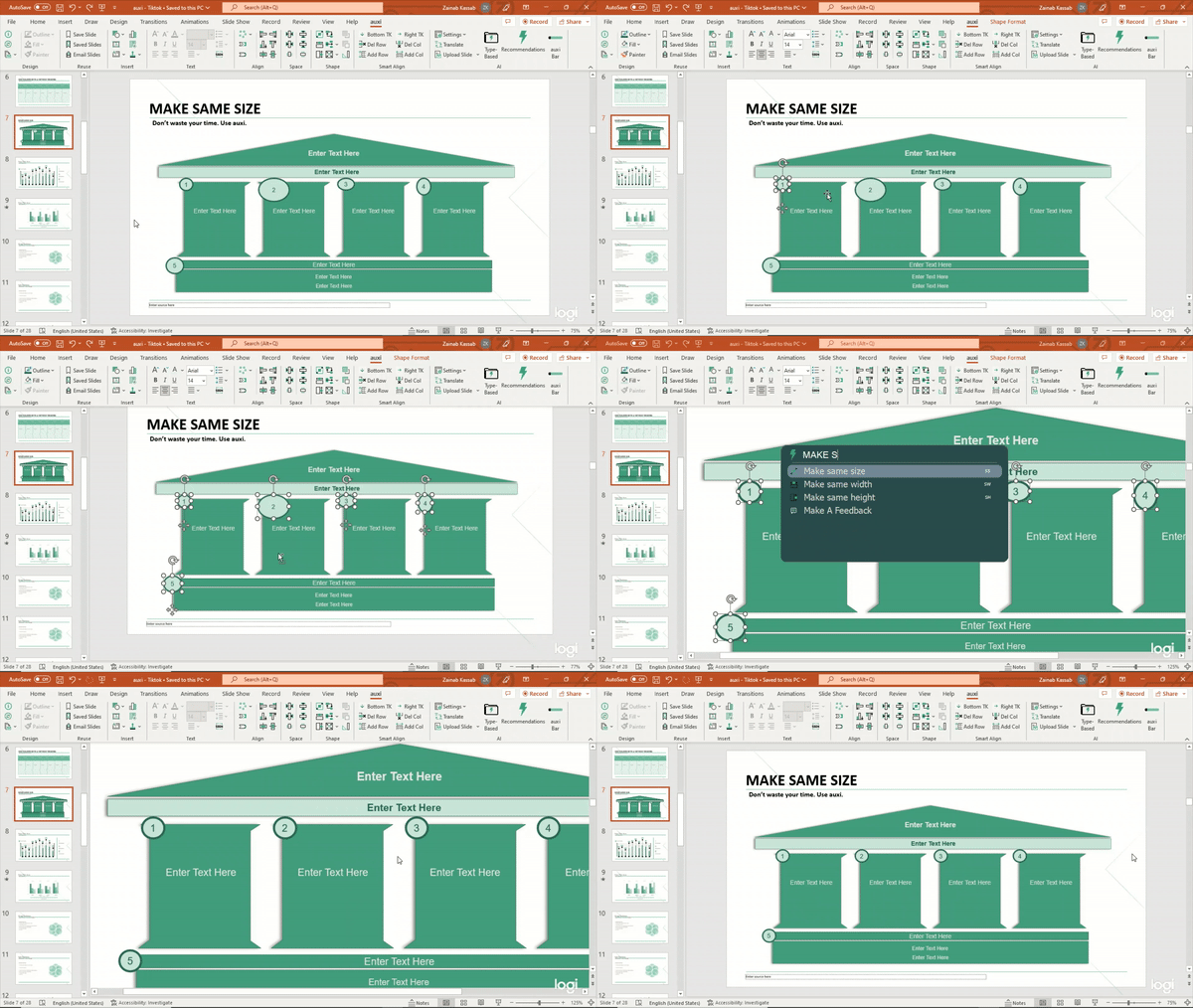
1. Make Same Size.
- Select the shapes you wish to resize. The first selected shape is the anchor.
- Type ‘Make Same Size’ in the auxi smart bar or just press S + S on your keyboard.
⤷ All shapes will be resized to the anchor’s width and height. ↔️ ↕️
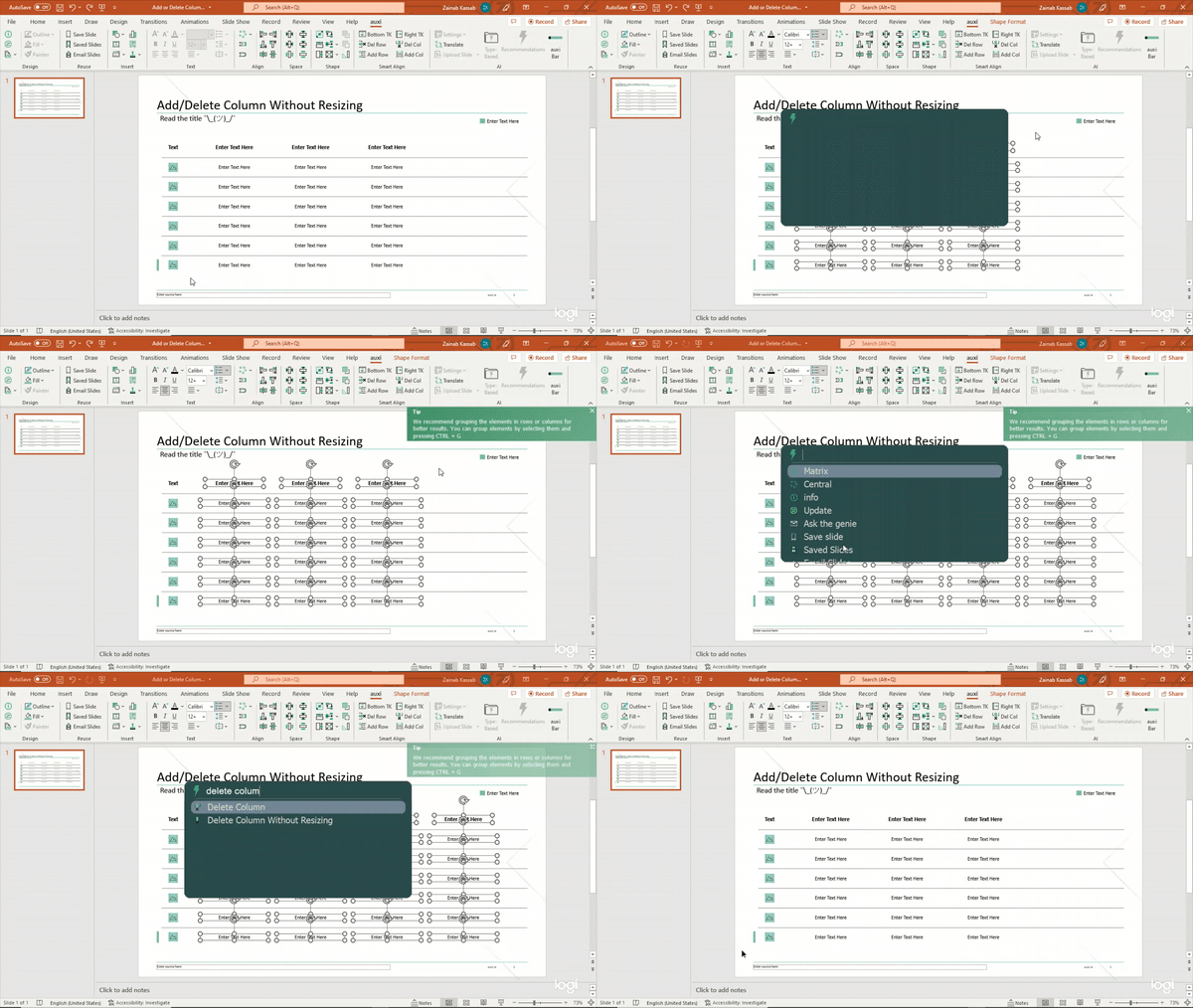
2. Add or Delete Column Without Resizing.
- Remember our magical Add/Delete column feature? This is similar but when you have enough space to add a column without the need to resize everything.
- Select your columns then open auxi’s smart bar using Ctrl+Space. Type in the command you want: Add/Delete Column Without Resizing.
⤷ Voila! You have a new cohesive column that is automatically well positioned and distributed.
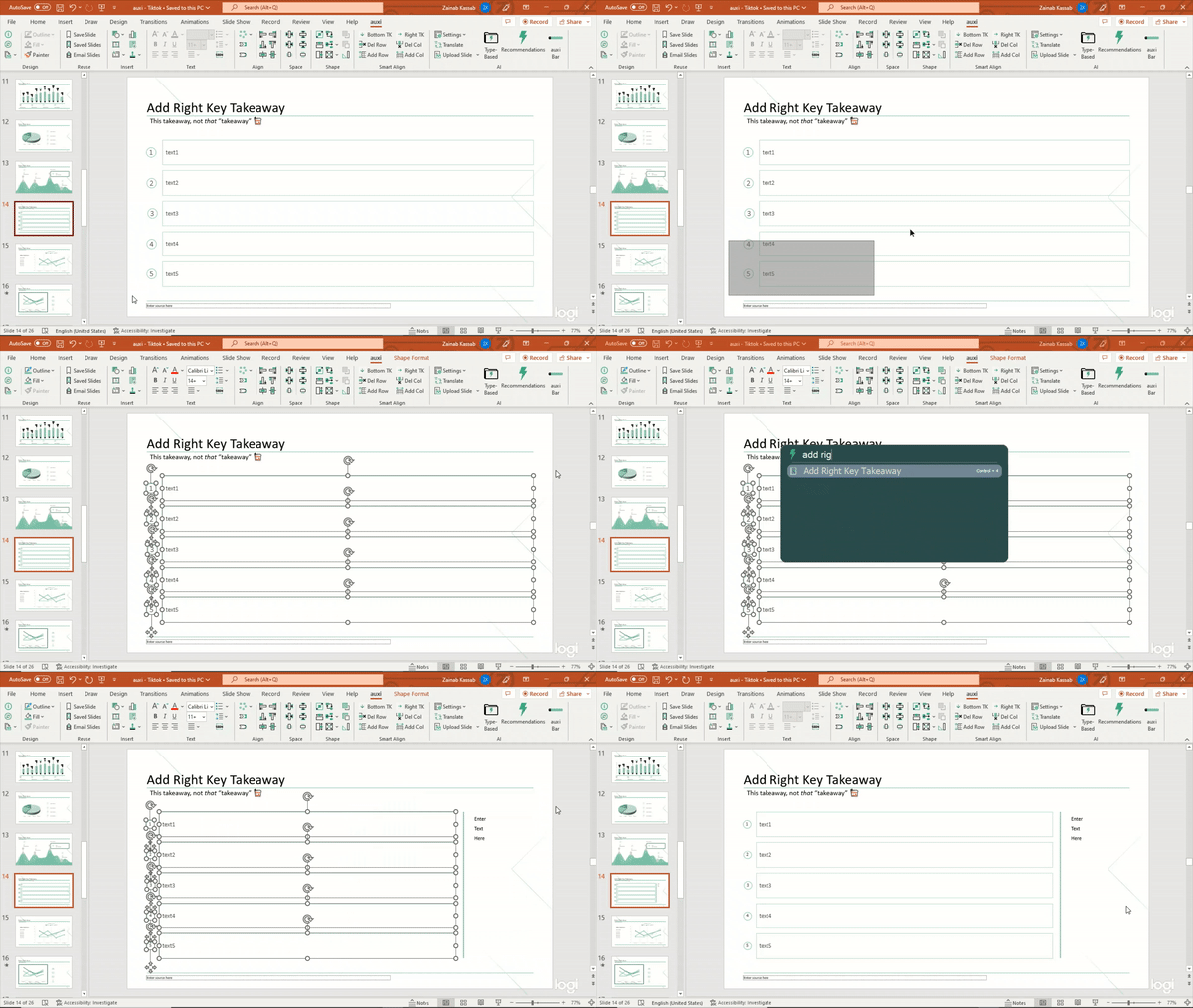
3. Add Right Key Takeaway.
- Make a selection over the items you want to add a key takeaway for, then type in the smart bar the following command: ‘Add Right Key Takeaway’.
- You can also press Control + 4 on your keyboard for the same result.
⤷ Now you have the perfect space to add a key takeaway.
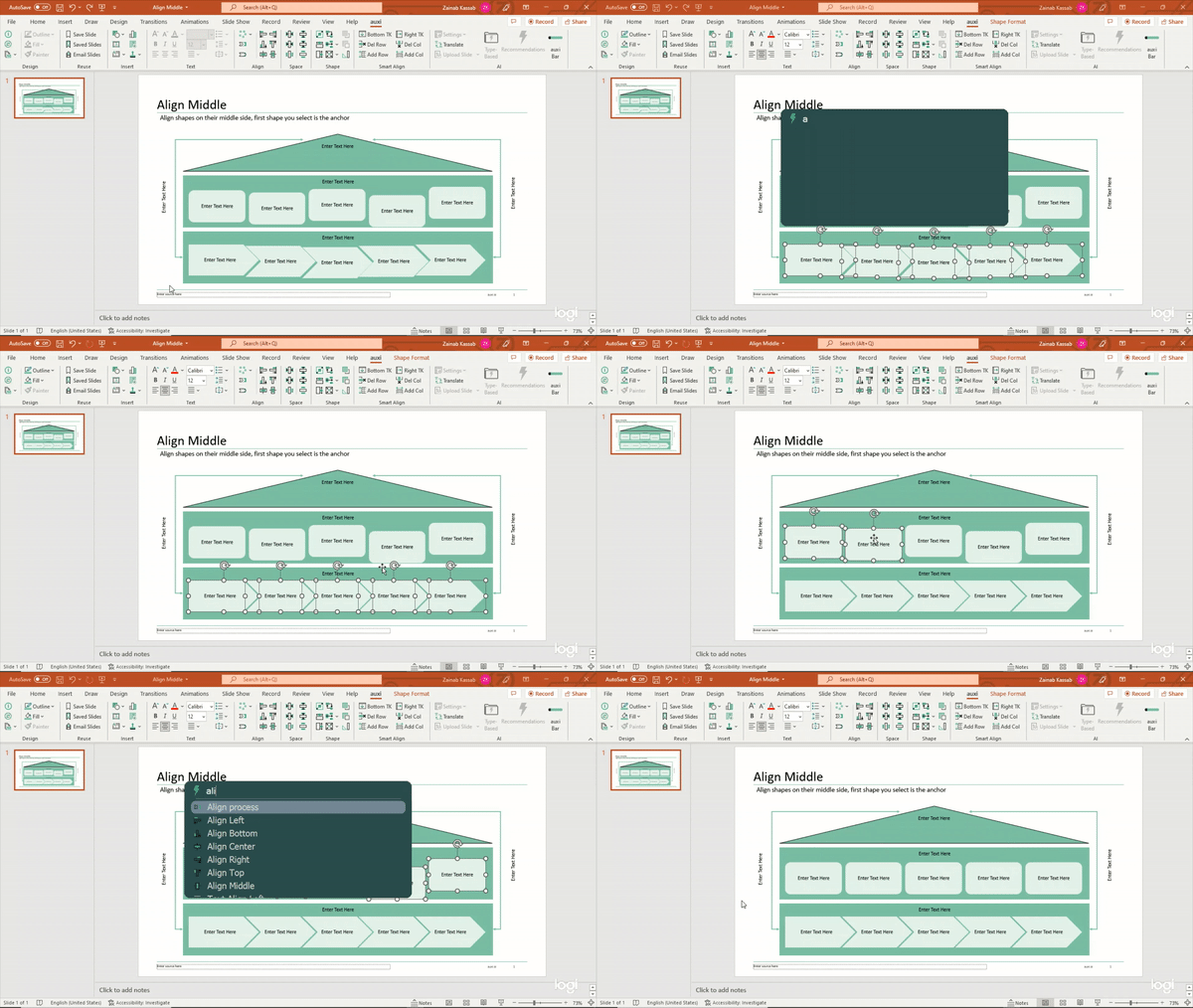
4. Align Middle.
- Select all the shapes you want to align to the middle side, first shape you select is the anchor ⚓️
⤷ Now the middle child doesn't feel left out. Pun intended.
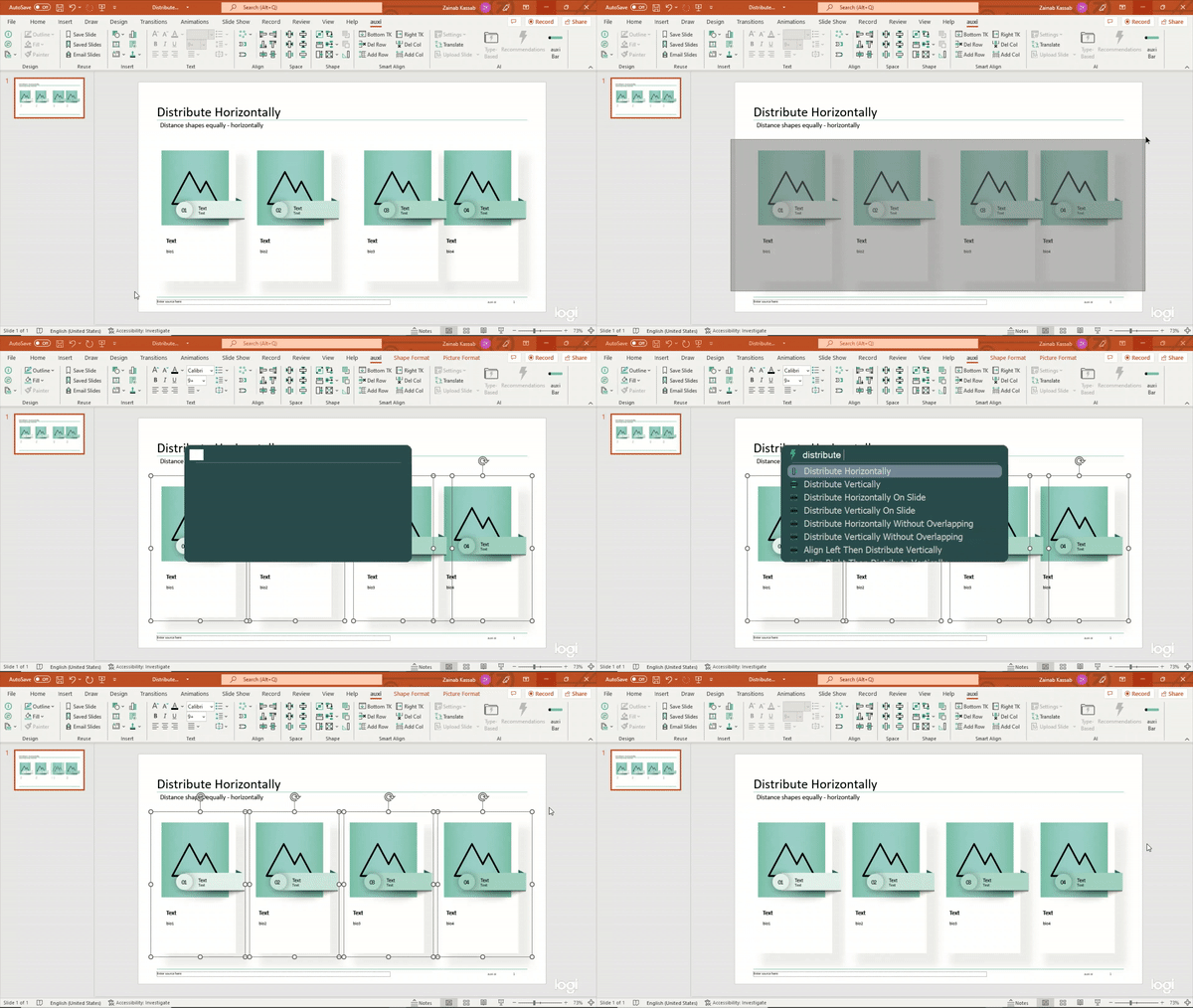
5. Distribute Horizontally.
- Have the first and last columns on the two extremities you want, then select all the columns and choose “Distribute Horizontally” through the smart bar or the auxi tab.
- You can also use the keyboard shortcut for this by pressing on D + V.
⤷ Now your columns are equally distant from each other.
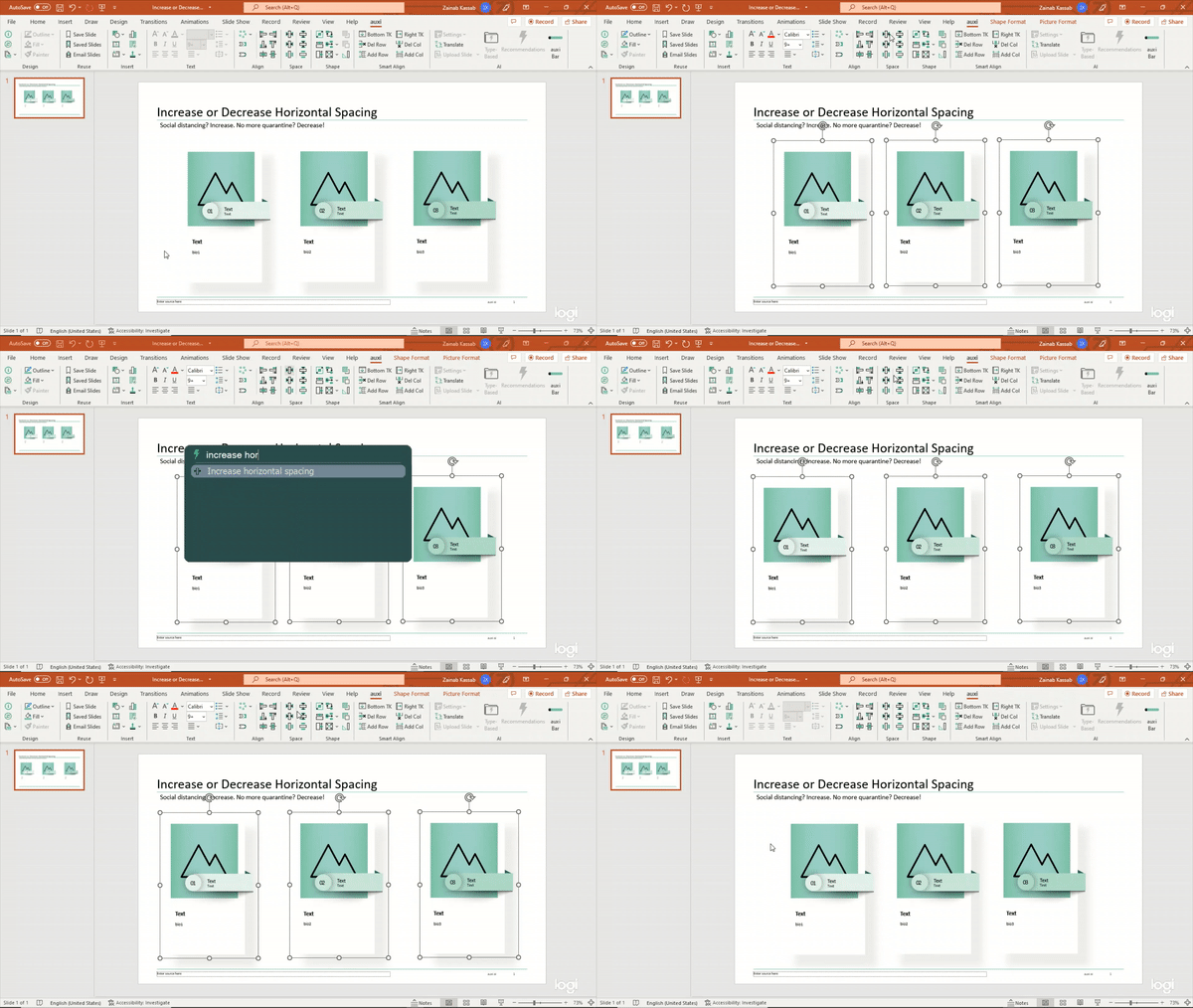
6. Increase or Decrease Horizontal Spacing.
- Select all your columns then choose the “Increase Horizontal Spacing” feature for social distancing purposes.
- Select all your columns then choose the “Decrease Horizontal Spacing” feature for your shapes to love each other.
- You can also press H and + on the keyboard to Increase the spacing, or H and - to decrease it.
⤷ This will save you so much time in changing the spaces between your items.
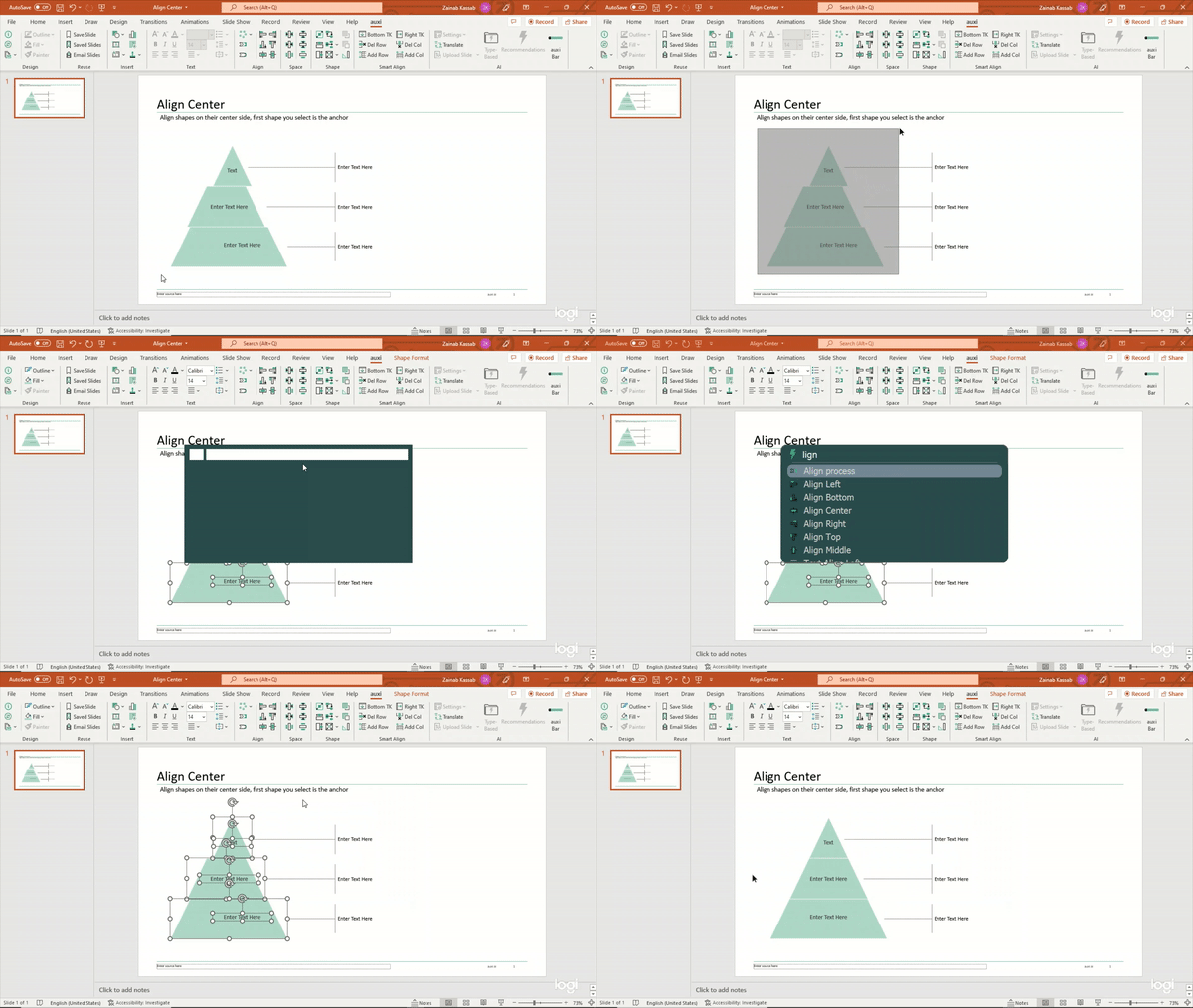
7. Align Center.
- This is the twin sister of ‘Align Middle’, but you can use this one when your items are more vertical.
- Select your anchor shape then select other shapes. Choose the ‘Align Center’ command through the smart bar or just press A + C on your keyboard as a quick shortcut.
⤷ Now all your items are aligned to their center in a vertical manner.